Admin Login and Dashboard
The Admin Panel is the highest level of access in IDPicker, designed for platform owners and high-level operations staff. This guide covers secure access and daily monitoring routines.
1. Secure Admin Login
Accessing the admin portal requires navigating to a specific, protected route.
- Open the Admin Login URL (often
/admin/login). - Enter your authorized admin Email or Username.
- Enter your Password.
- Click Sign In.
- Once your high-level authorization cookie is validated, you are routed directly to the global dashboard.
Forgotten Password? If you lose your password, click Forgot Password, enter your email, and use the secure reset link sent to your inbox. Because of the high privilege level of this account, password strength requirements are strictly enforced.
2. Daily Dashboard Checks
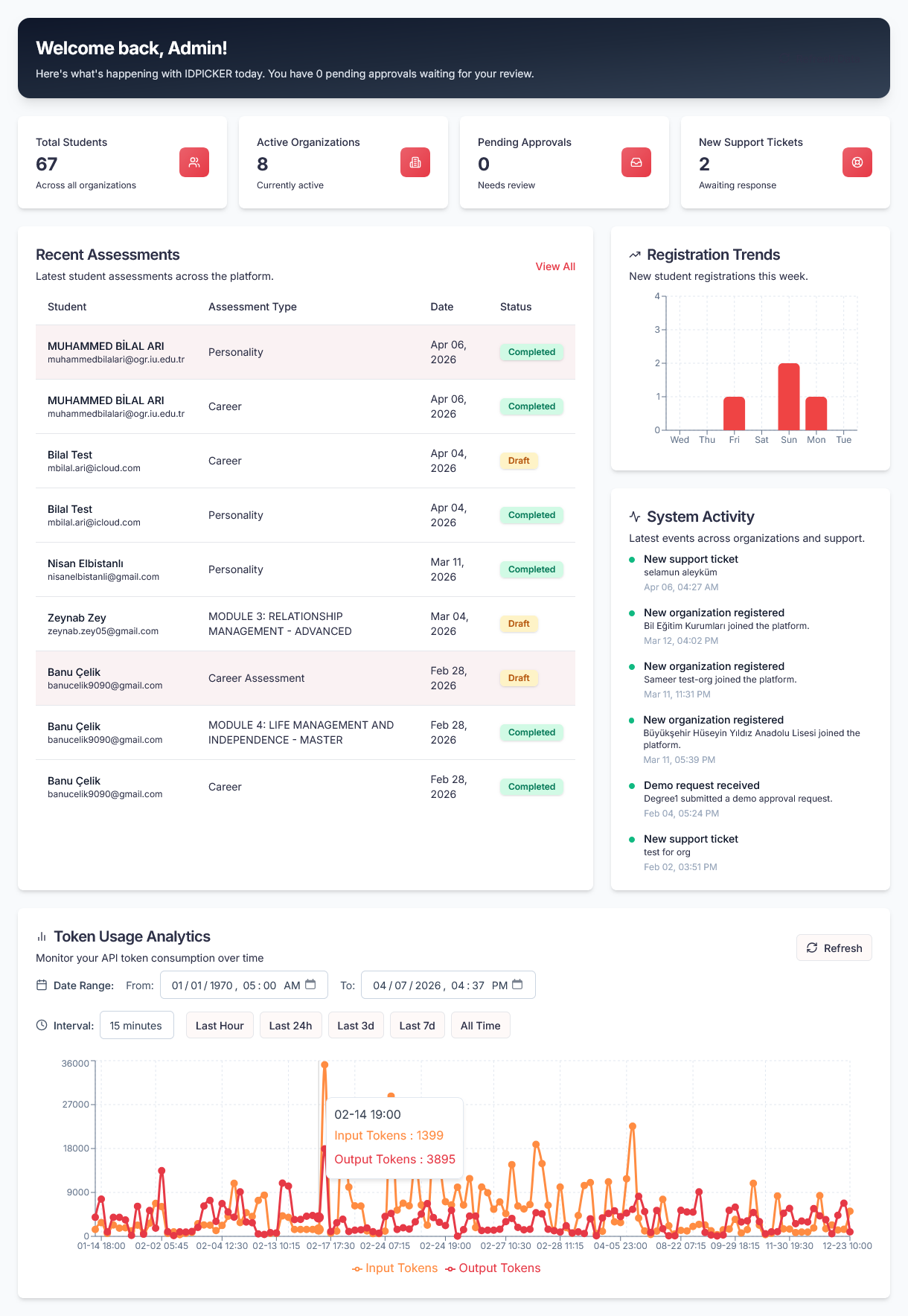
The admin dashboard provides a live pulse of the entire platform’s health and activity. Make it a habit to review these four areas every time you log in:
- Global KPI Cards: Check total active users, new registrations today, and total completed assessments.
- Recent Assessments Table: A live feed of the newest data coming into the system from across all organizations.
- Registration Trend Chart: Look for sudden spikes or drops in daily sign-ups.
- System Activity Panel: A generalized event feed tracking high-level system actions.
3. Monitoring AI Token Usage
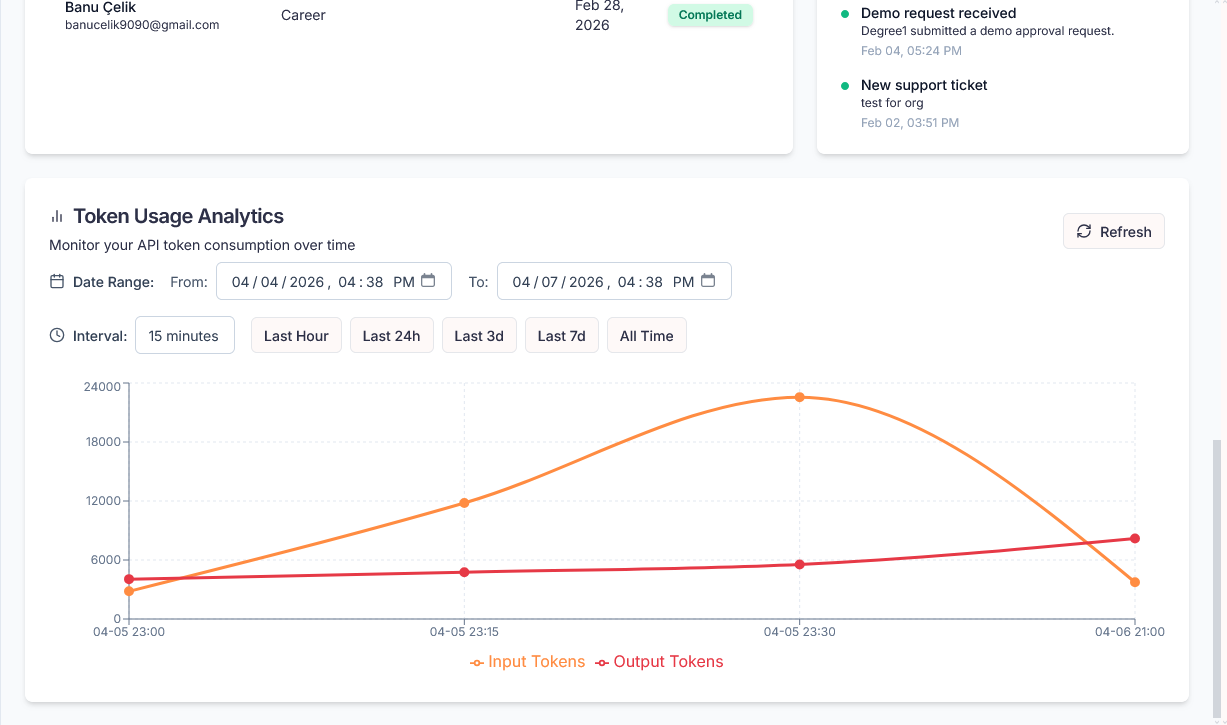
Because the AI Mentor and generation features consume API tokens, monitoring usage is critical for cost control.
- Scroll to the Token Usage section on the dashboard.
- Adjust the date range filter to look at the last 24 hours or the last 7 days.
- Review the charts for Input Tokens (prompts sent to the AI) and Output Tokens (responses generated by the AI).
- If you notice a massive, unexplained spike in usage, immediately cross-reference the exact timestamp with the Realtime Logs to identify potential abuse or infinite loops.
Common Questions
| Situation | What to do |
|---|---|
| I log in successfully, but the dashboard widgets are completely blank | High-level data queries can take a moment to resolve. Wait 5 seconds and refresh the page |
| I click a link and keep getting bounced back to the login page | Your secure session cookie has likely expired. Clear your browser cookies for the domain and sign in again |
| My token usage seems artificially high | Check if an organization recently ran a bulk import and triggered automated report generations for hundreds of students simultaneously |