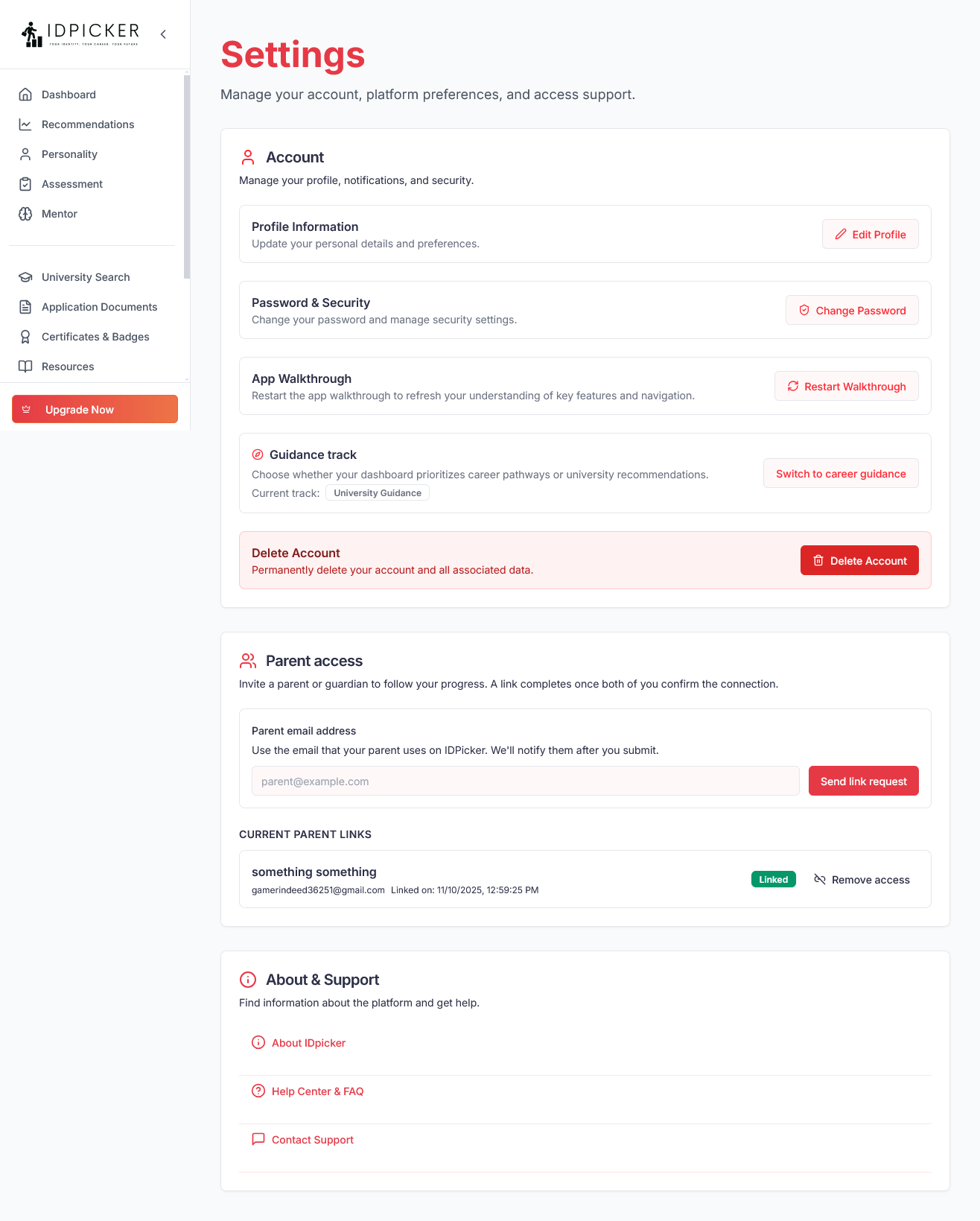
Account and Settings
Detailed click-by-click profile and settings walkthrough
This guide explains how students edit profile, manage parent links, switch guidance track, and delete account safely.
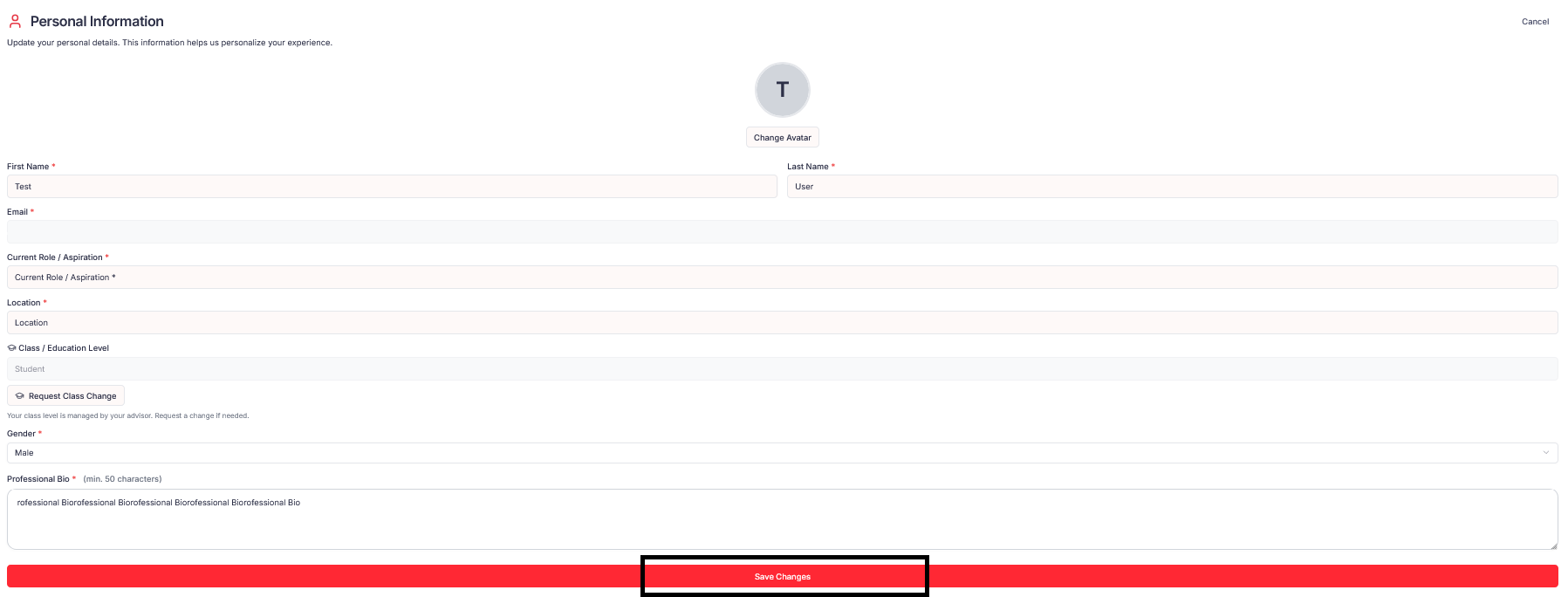
1. Edit Profile (Click-by-Click)
- In sidebar, click Profile.
- Click Edit Profile.

- Update fields as needed:
- First name
- Last name
- Bio
- Location
- Job title
- Gender
- Instagram URL
- X URL
- Click Save.
- Wait for success confirmation.
 If save fails:
- Recheck required fields and URL formats.
- Retry once after page refresh.
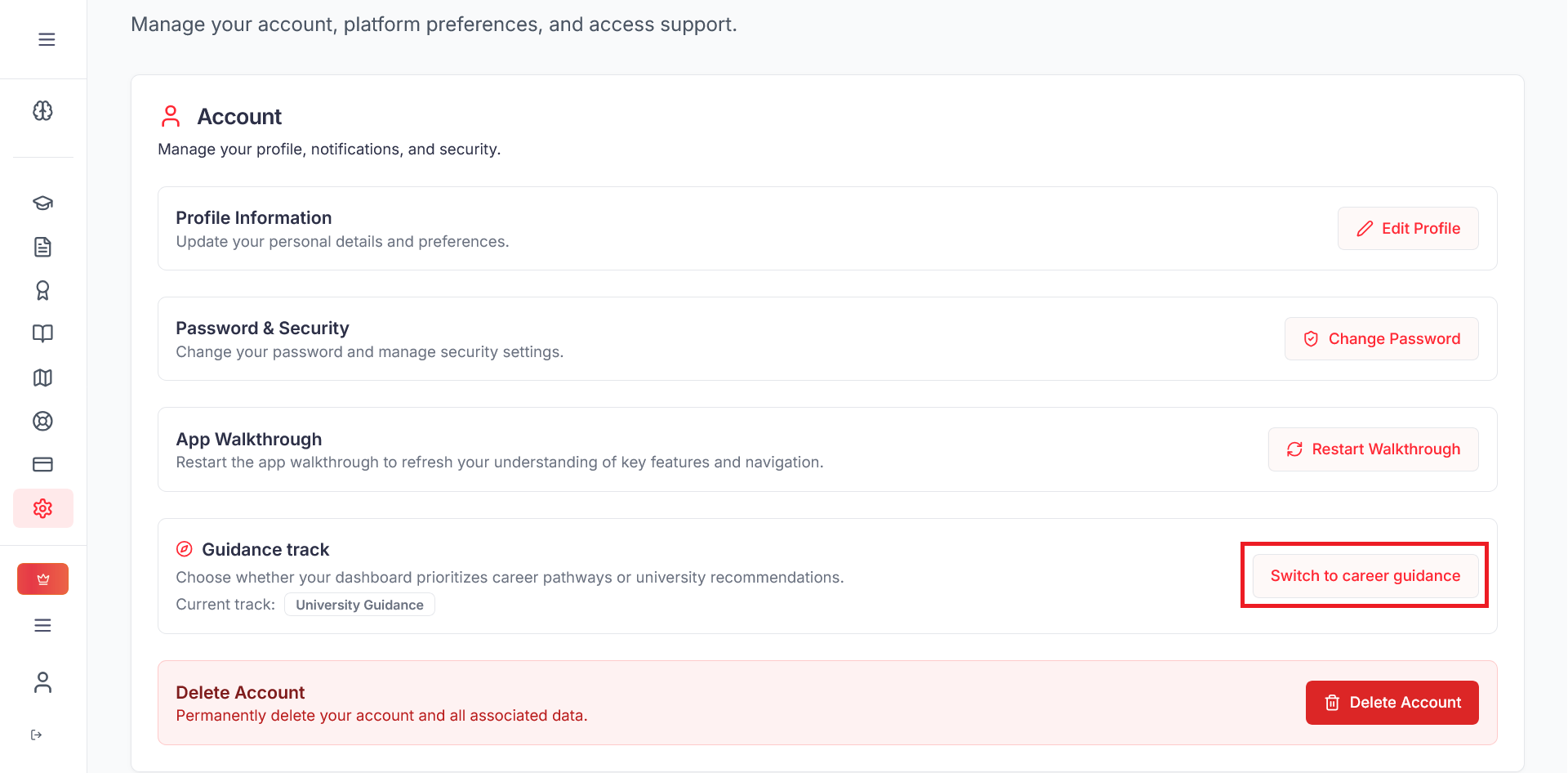
2. Switch Recommendation Track from Settings
- In sidebar, click Settings.
- Locate Guidance Track section.
- Click switch action (Career/University).
- Wait for saved confirmation.
- Open Recommendations and confirm new mode.
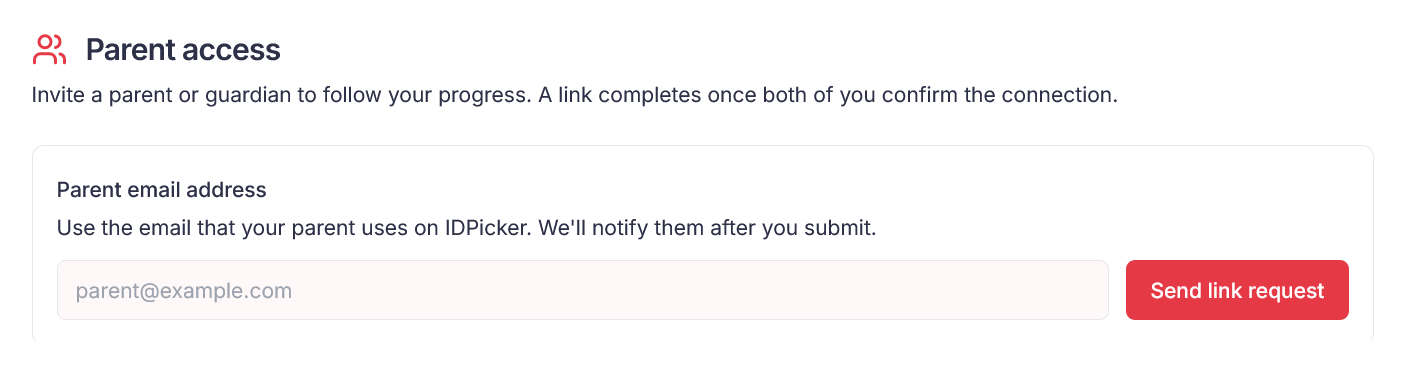
3. Link Parent Account
- Stay on Settings page.
- Locate Parent Linking section.
- Click parent email input.
- Enter parent email.
- Click Send/Request Link.
- Wait for confirmation.
 Possible outcomes:
- Linked immediately
- Pending until parent-side confirmation flow
4. Remove Parent Access
- In Parent Links list, locate linked parent row.
- Click Unlink.
- Confirm action.
- Verify parent is removed from linked list.

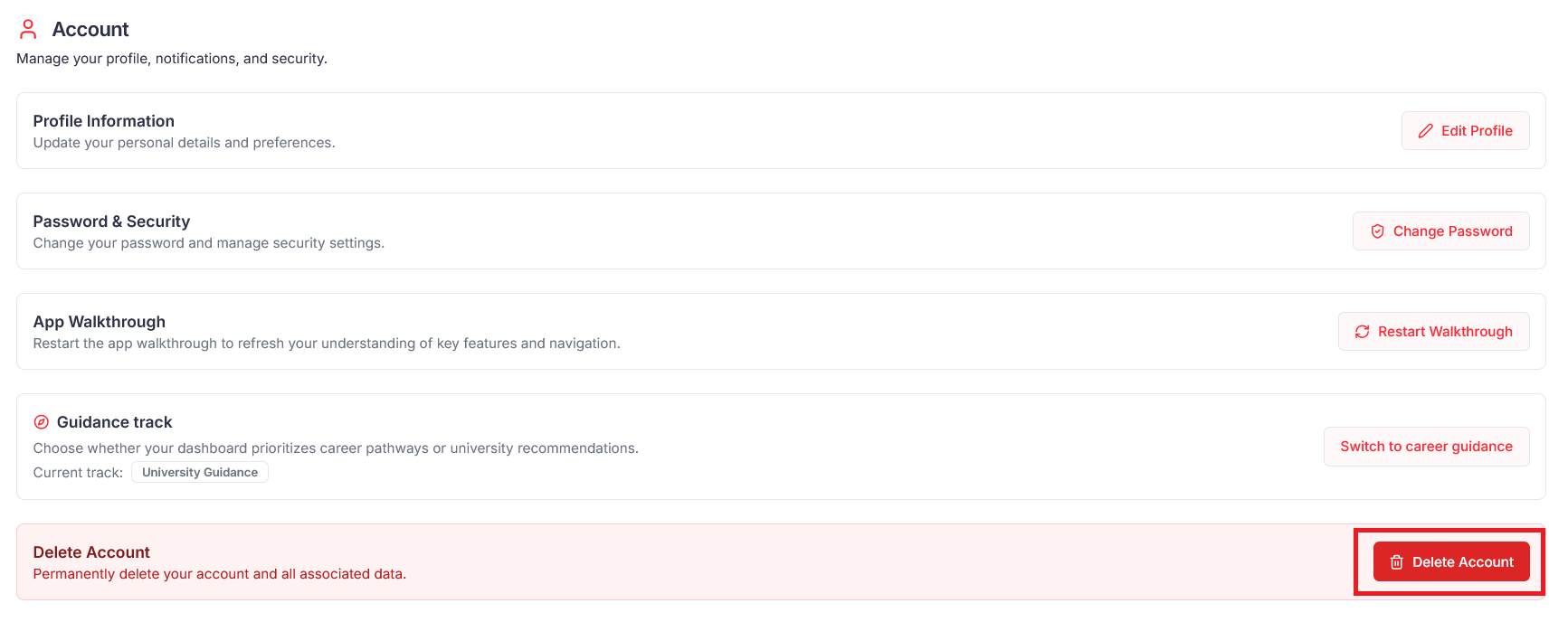
5. Delete Student Account (High Risk)
- In Settings, open Delete Account area.
- Click Delete Account.
- Read warning carefully.
- Enter required confirmation word exactly.
- Click final delete confirmation.
- Wait for logout/redirect.
 Best practice:
- Export/save anything needed before deletion.
Common Student Questions
Q: Parent link request sent but not linked yet. A: Link may stay pending until parent confirmation path is completed.
Q: Track switched in settings but recommendations unchanged. A: Re-open Recommendations or refresh once.
Q: Delete button did not proceed. A: Confirmation word is strict; type exactly as shown.