Assessment
Assessments are the core of IDPicker. Completing them unlocks your personalized career paths, university recommendations, and personality insights.
1. Starting a New Assessment
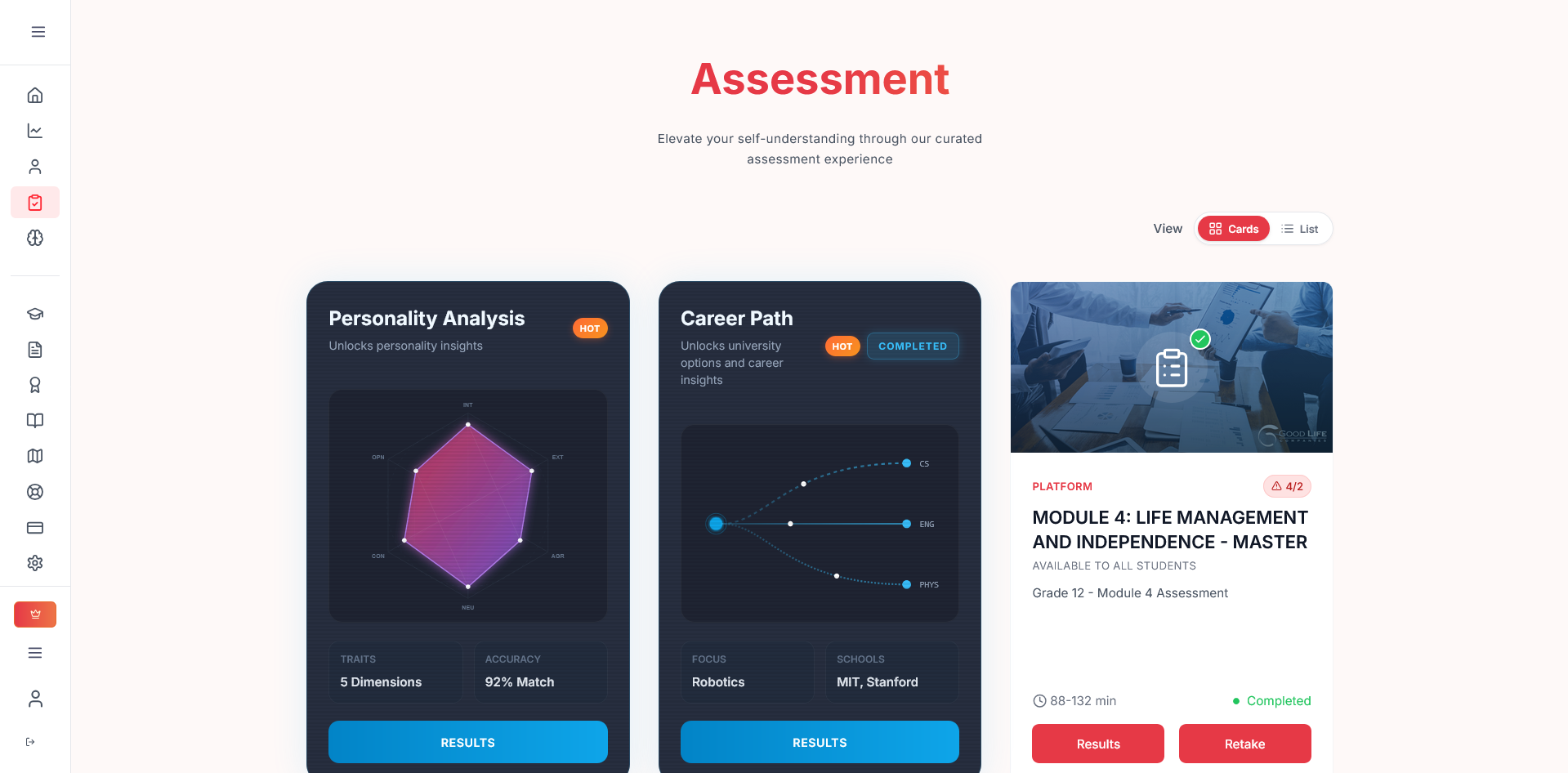
- From the left sidebar, click Self Assessment.
- Look at the available assessment cards (e.g., Personality, Career).
- Note: Your school or organization may assign custom assessments here as well.
- Click Start on the card you want to begin.
- Read the question instructions carefully.
- Select or type your answer, then click Next.
- Repeat until all questions are answered, then click Submit.
Tip: Do not overthink your answers, especially for personality tests. Your first instinct is usually the most accurate!
2. Resuming an Incomplete Assessment
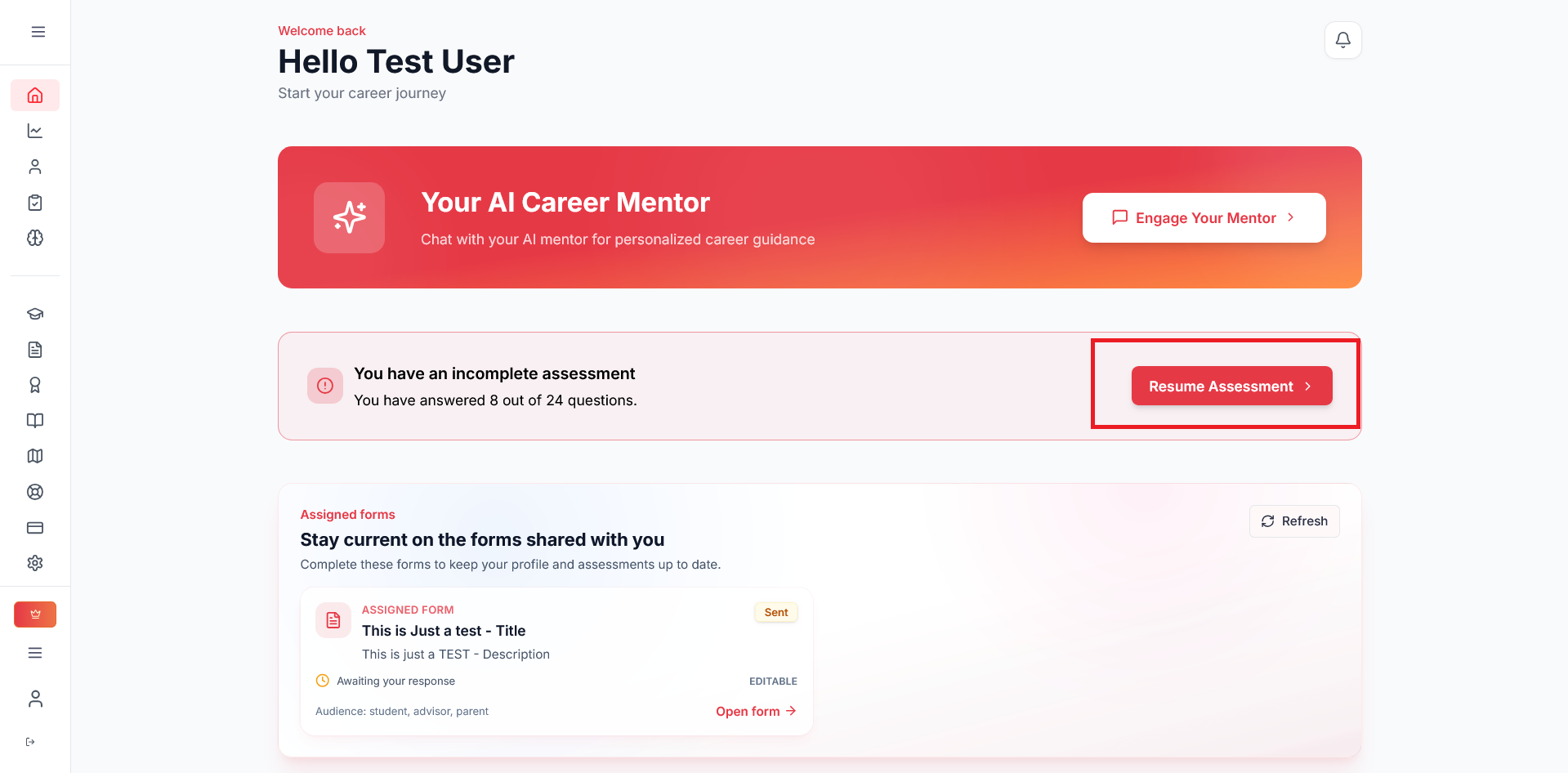
Life happens. If you close your browser or navigate away, your progress is safely auto-saved.
- Return to the Self Assessment page (or click the Resume card on your Dashboard).
- The assessment card will now show a Continue button instead of Start.
- Click Continue.
- You will pick up exac servertly where you left off.
- Complete the remaining questions and submit.
3. Retaking an Assessment
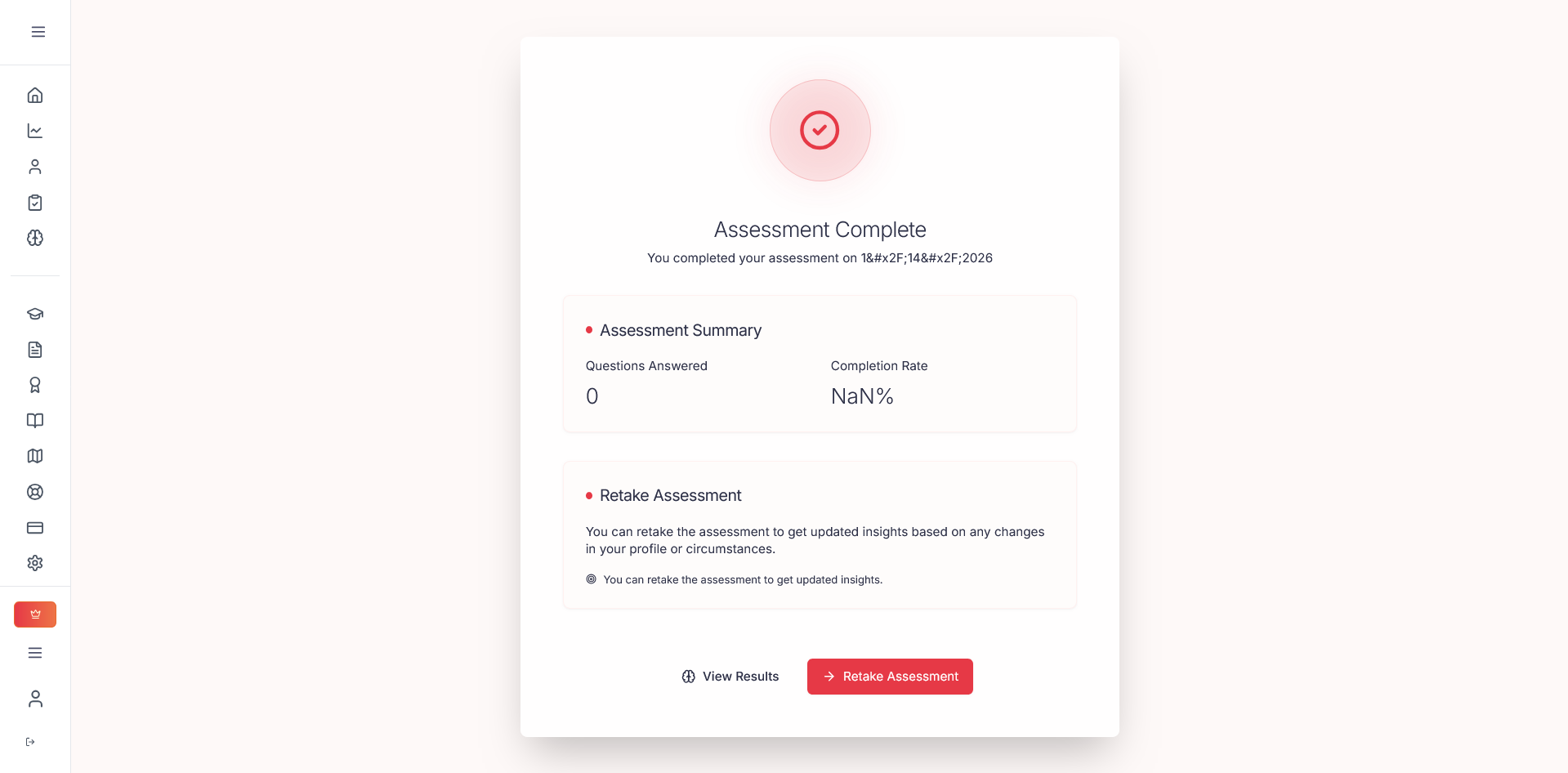
Some assessments allow you to retake them if you feel your situation has changed. If retakes are enabled for a specific test:
- Open the completed assessment card.
- Click Retake.
- A confirmation prompt will ask if you are sure you want to overwrite your previous results. Confirm to proceed.
- Complete the new run and submit.
4. Reviewing Your Results
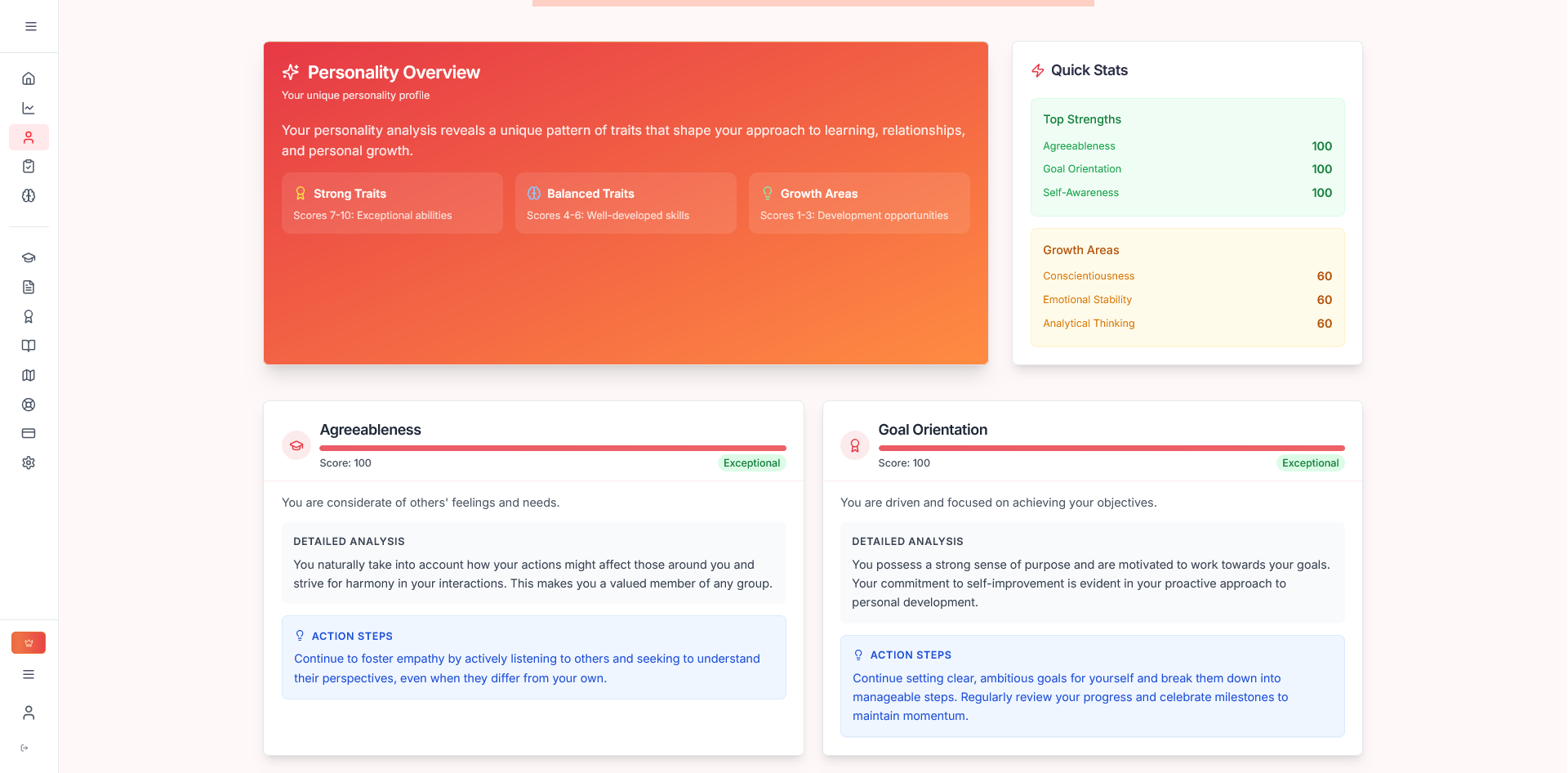
Once you submit an assessment, the platform instantly generates your results.
- On the completed assessment card, click View Results.
- Review the summary and breakdown of your traits or aptitudes.
- Armed with this new data, head over to the Recommendations or Personality modules to see what the AI has unlocked for you!
5. Important Note on Languages
If you change your interface language (e.g., from English to Turkish) while an assessment is in progress, the platform may require you to confirm a reset of your current in-progress responses to match the new language schema. It is best to stick to one language until you submit!
Common Questions
| Situation | What to do |
|---|---|
| Recommendations or Personality menus are locked | You must complete your core assessments first to unlock these areas |
| The Start button is missing on a custom card | The assessment may be closed, completed, or outside your organization’s allowed time window |
| I lost progress unexpectedly | Check if you switched languages mid-test. Otherwise, ensure you have a stable network connection |