Dashboard
Understanding every block on the student dashboard and how to use them effectively
The Dashboard is the first thing you see after logging in. It gives you a bird’s-eye view of everything that needs your attention — assessments, notifications, forms, invitations, and program recommendations.
1. What You See on the Dashboard
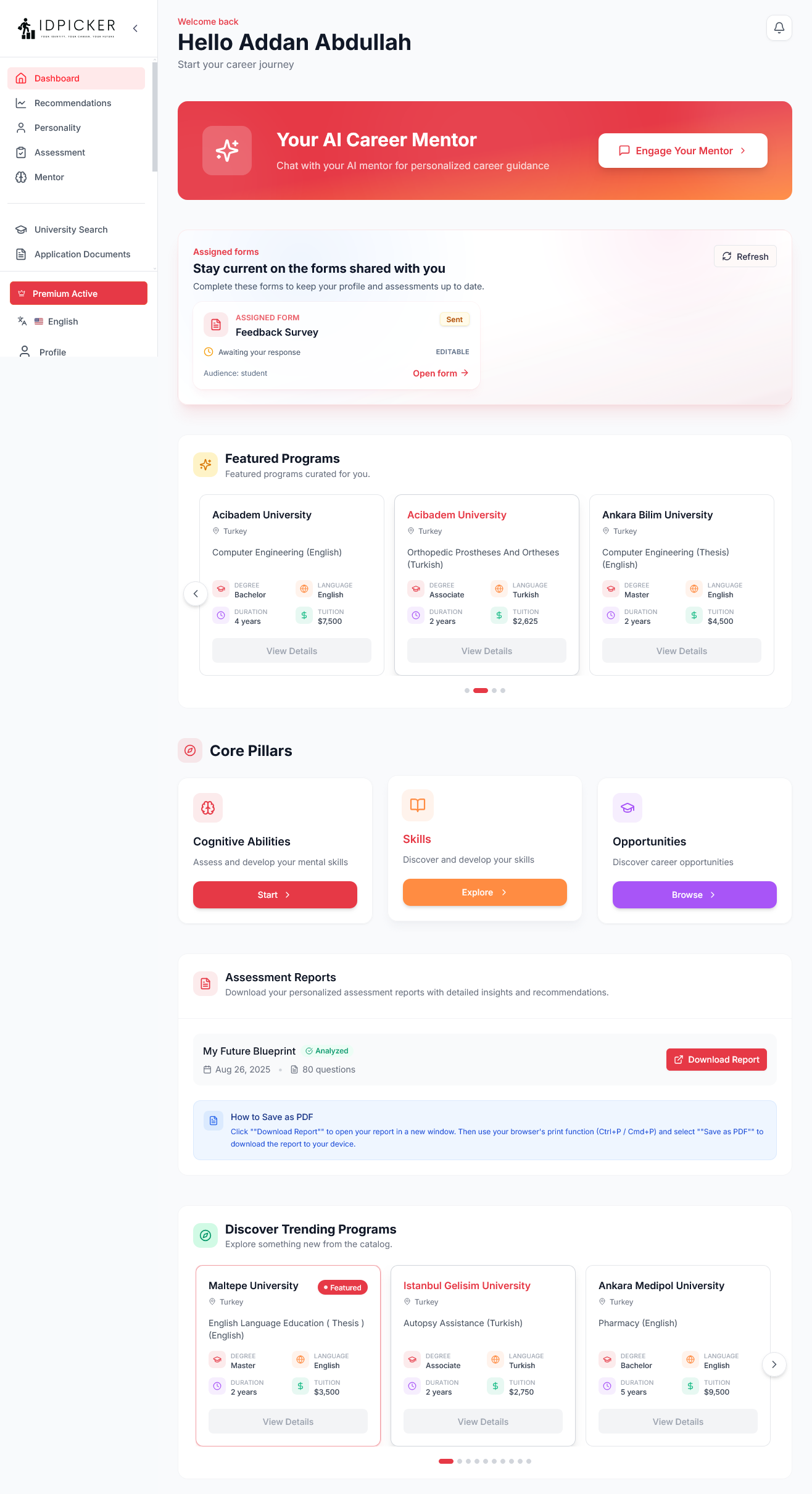
When you land on the dashboard, you will see several content blocks:
| Block | What It Shows | What to Do |
|---|---|---|
| Assessment Reports | Your latest completed assessment output | Download or view your report |
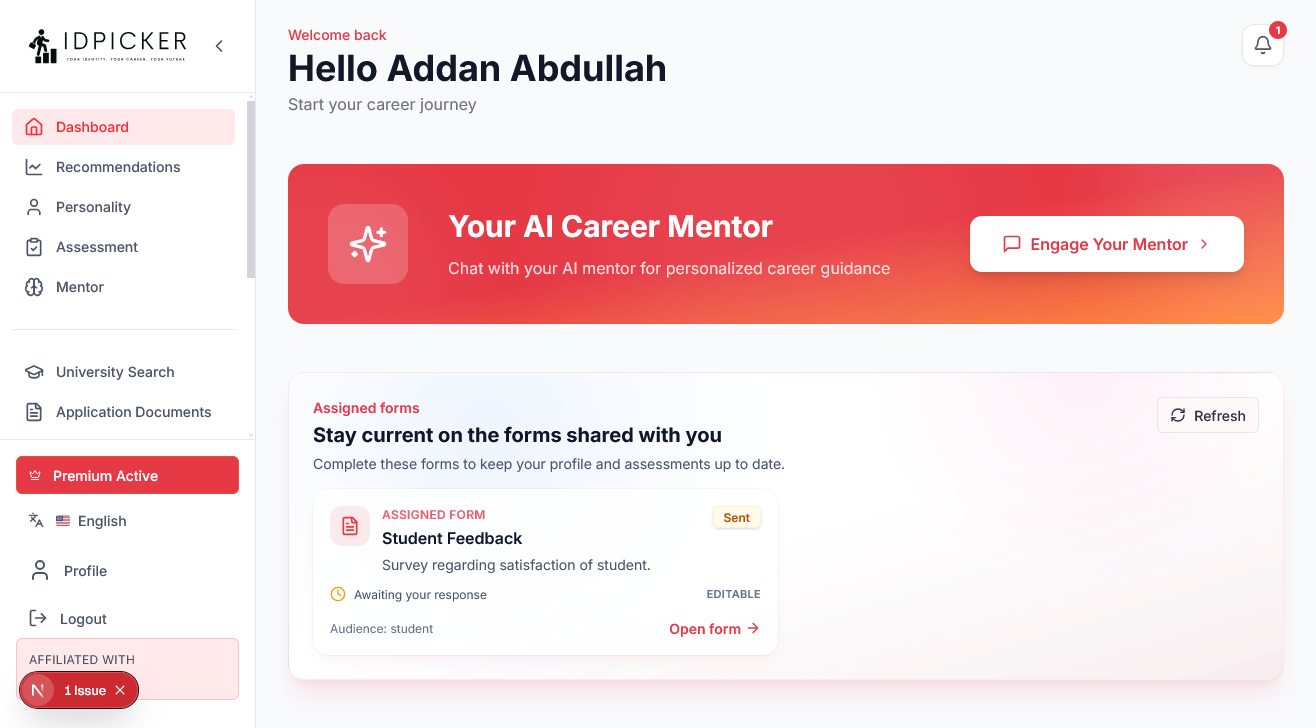
| Assigned Forms | Forms sent to you by your advisor or organization | Open and respond |
| Organization Invitations | Pending invitations to join an organization | Accept or Decline |
| Notifications | System and advisor announcements | Read and act on relevant items |
| Promoted Programs | Highlighted university/career programs | Browse and explore |
| Random Programs | Exploratory program discovery | Click into any that look interesting |
2. Your First 5 Actions After Logging In
Follow this sequence whenever you start a new session for maximum efficiency:
- Check Notifications — Look for any new announcements from your advisor or platform.
- Open Assigned Forms — If a form is pending, complete it now before it slips away.
- Resume an Assessment — If you left an assessment in progress, the dashboard shows a resume prompt.
- Browse Recommendations — Click Recommendations in the sidebar to check your latest career or university matches.
- Explore Program Cards — Browse promoted and random programs to discover new options.
3. Using the Assessment Reports Block
- Locate the Assessment Reports block on your dashboard.
- If a report is available, click the View or Download button.
- If the button appears locked or restricted:
- Your assessment may not be complete yet → go to Self Assessment in the sidebar.
- Your account plan may not include report downloads → check your subscription in Settings.
4. Using the Assigned Forms Block
Forms are created by your advisor and require your response.
- Locate Assigned Forms on the dashboard.
- Click Open on any pending form.
- Complete all fields on the form page.
- Click Submit.
- You are returned to the dashboard and the form disappears from the pending list.
Note: Submitted forms are removed automatically from the pending list. If a form disappears, it was already submitted or removed by the advisor.
5. Handling Organization Invitations
- Find the Invitations block on the dashboard.
- Click an invitation card to review the organization name and context.
- Click Accept to join or Decline to refuse.
- Your decision is saved immediately.

6. Reading Notifications
- Locate the Notifications block.
- Click on any notification that looks relevant.
- It may take you directly to the related module (form, assessment, recommendation, etc.).
- After reviewing all, return to the main dashboard.
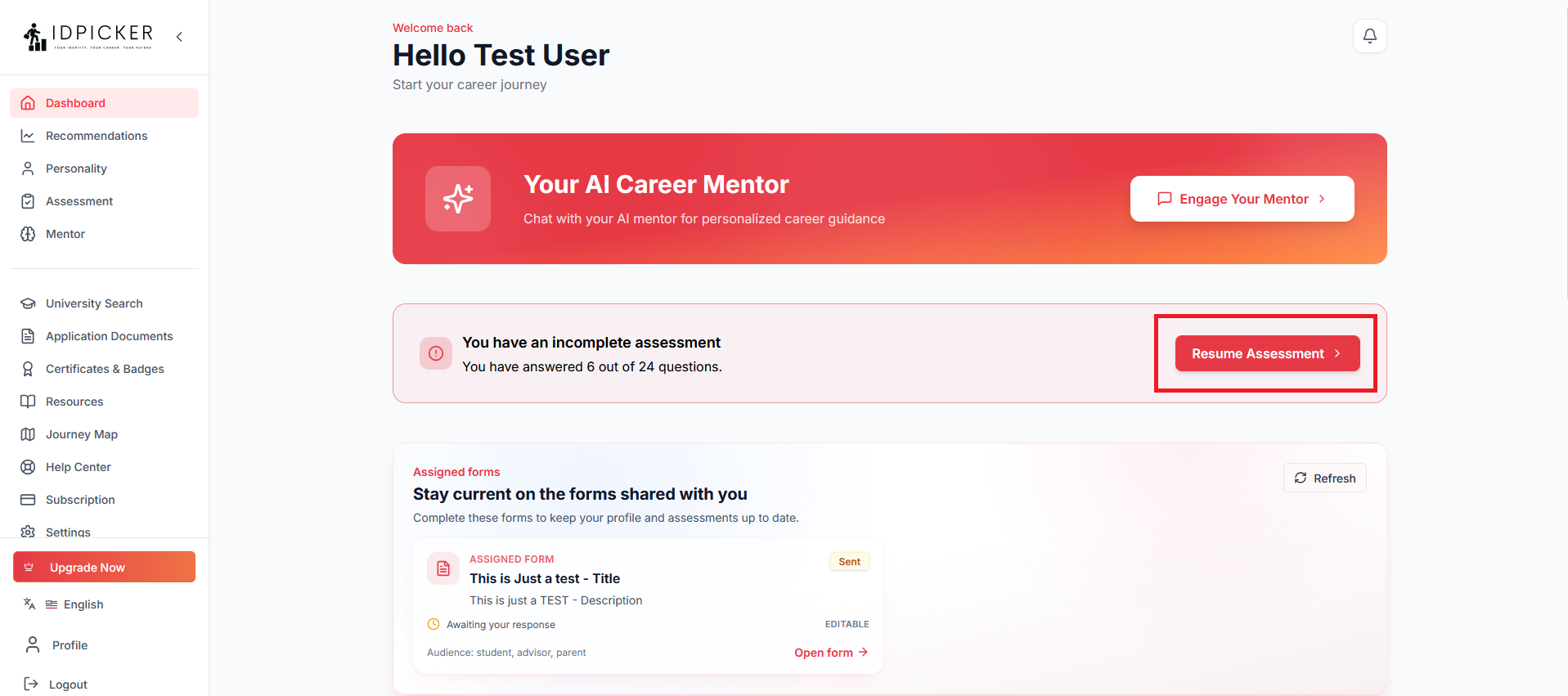
7. Resuming an In-Progress Assessment
If you started an assessment and did not finish it:
- The dashboard shows a Resume prompt card automatically.
- Click Resume Assessment.
- You are taken back to exactly where you left off.
- Complete all remaining questions and click Submit.
8. Exploring Program Cards
- Promoted programs are specifically featured by the platform or your organization.
- Random programs are surfaced for open exploration.
Click any program card to view its details. To search and filter more precisely, open University Search from the sidebar.
Common Questions
| Situation | What to do |
|---|---|
| Dashboard appears empty on first login | Normal — data populates as you complete assessments, receive forms, and get invitations |
| A form I need is missing | Check with your advisor — they may not have assigned it yet, or you may have already submitted it |
| Report download button is greyed out | Complete your assessment first, or check your subscription plan |
| Recommendations block not visible | It may only appear after your first assessment is complete |