Help Center
How to create support tickets and get help when things go wrong
Sometimes things break or you encounter a feature you do not understand. The Help Center is your direct line to the IDPicker platform support team.
1. Opening a New Support Ticket
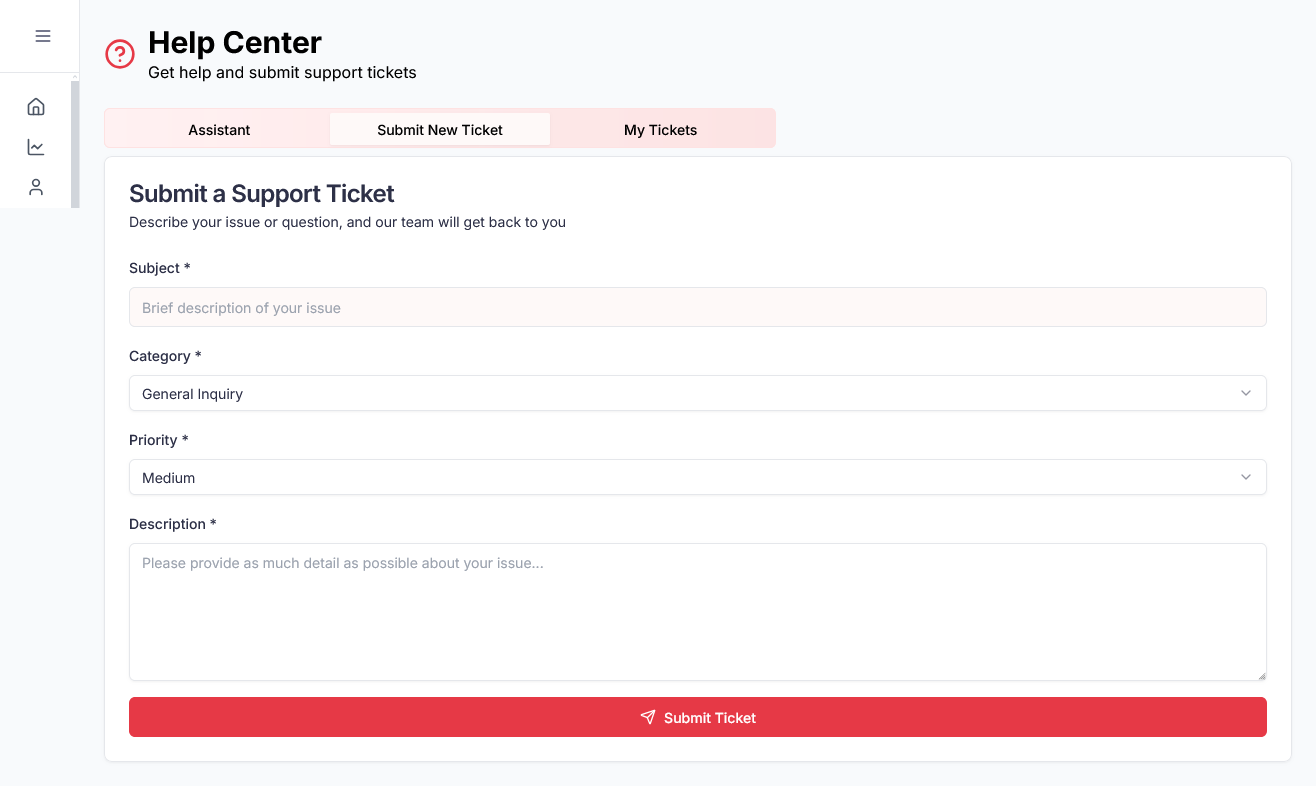
- In the sidebar, click Help Center.
- Make sure the New Ticket tab is selected.
- Click the Subject line and type a brief, clear summary (e.g., Cannot download personality report).
- Select the matching Category (Technical, Account, Billing, Feature, General, or Other).
- Select a Priority (Low, Medium, High, Urgent).
- Note: Please only use Urgent for complete account blockers (like being totally unable to log in).
- In the Description box, provide as much detail as possible.
- Click Submit and wait for the success flash.
2. How to Write a Ticket That Gets Fixed Fast
The support team wants to help, but they cannot see your screen. Provide these details to speed up resolution:
- Exactly what page or module you were on.
- The exact text of any error message shown.
- What you clicked before the error happened.
- What you expected to happen, vs what actually happened.
3. Tracking Your Submitted Tickets
Once submitted, you can monitor the status of your request without sending duplicate emails.
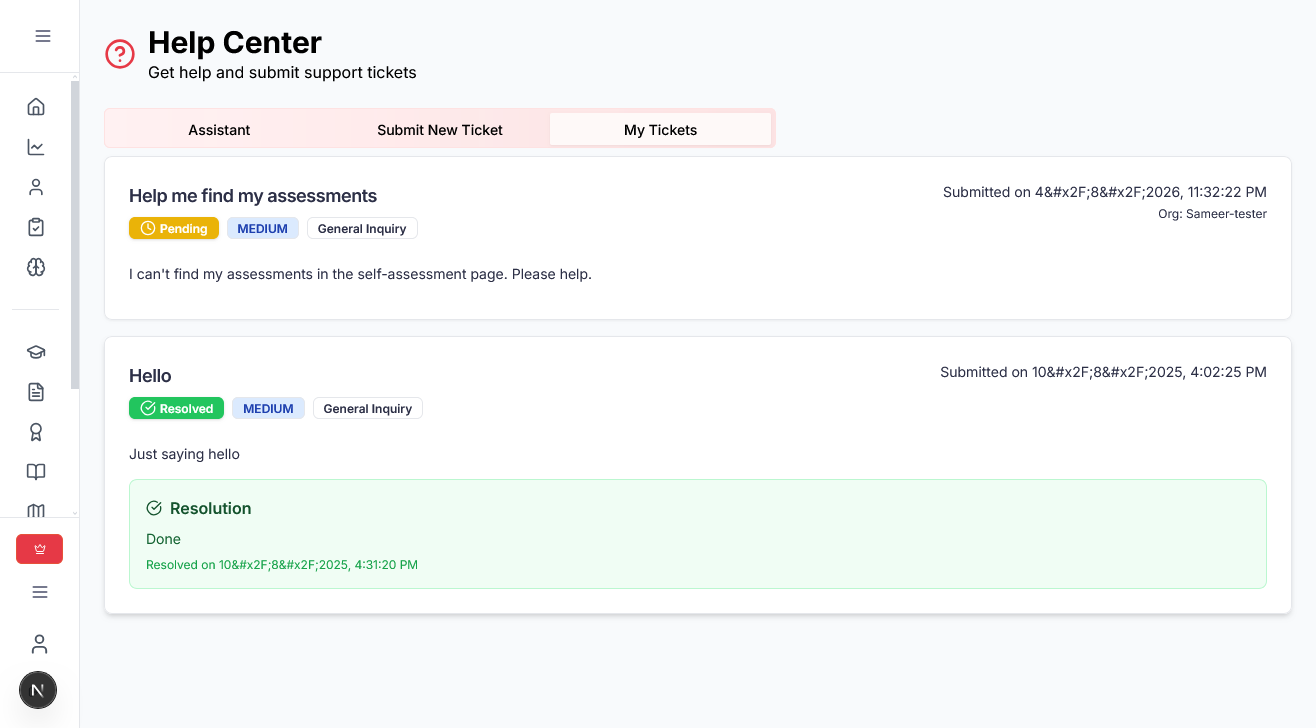
- Click the My Tickets tab at the top of the Help Center.
- Find the issue in your list.
- Review the Status badge to understand current progress:
| Status Badge | What it Means |
|---|---|
| Pending | Received, sitting in the queue waiting for an agent |
| In Progress | A support agent is actively investigating right now |
| Resolved | The agent has implemented a fix or provided an answer |
| Closed | The issue is fully completed and archived |
If an agent replies requiring more info, you will be notified!
Common Questions
| Situation | What to do |
|---|---|
| I clicked submit but got a red error | Check that you actually wrote a Subject and Description. Both are required! |
| I submitted my ticket but my list is empty | You are probably still on the New Ticket tab. Switch back to My Tickets |
| What category do I pick for login issues? | Select Account, unless you are specifically facing a payment/subscription issue, then pick Billing |