Notifications
How to read, manage, and act on platform notifications in your student account
IDPicker keeps you informed through a built-in notification system. Whenever your advisor sends you a message, assigns you a form, or an action requires your attention, a notification appears in your inbox so nothing falls through the cracks.
1. Opening Your Notification Inbox
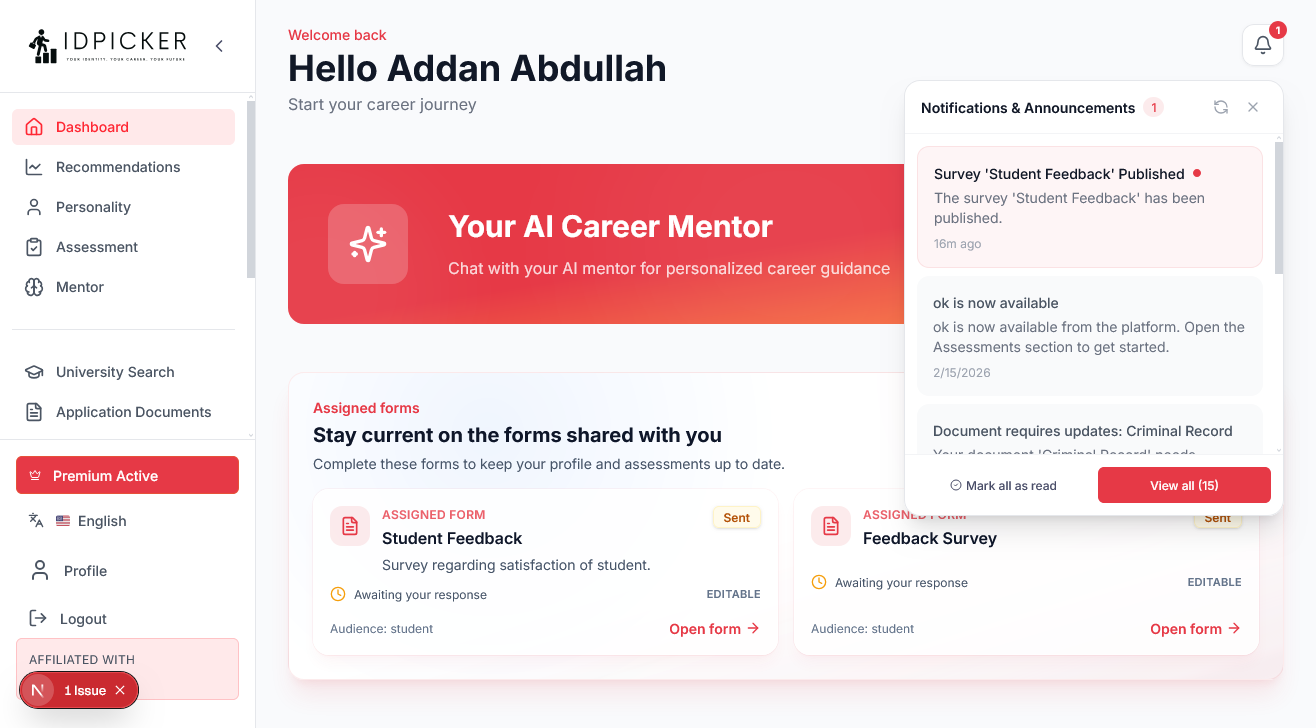
- Look for the Bell icon in the top navigation bar.
- A red badge on the bell shows how many unread notifications you have.
- Click the bell to open the Notification Dropdown — this shows your five most recent messages.
- Click View All Notifications at the bottom of the dropdown to open the full inbox page.
2. Reading a Notification
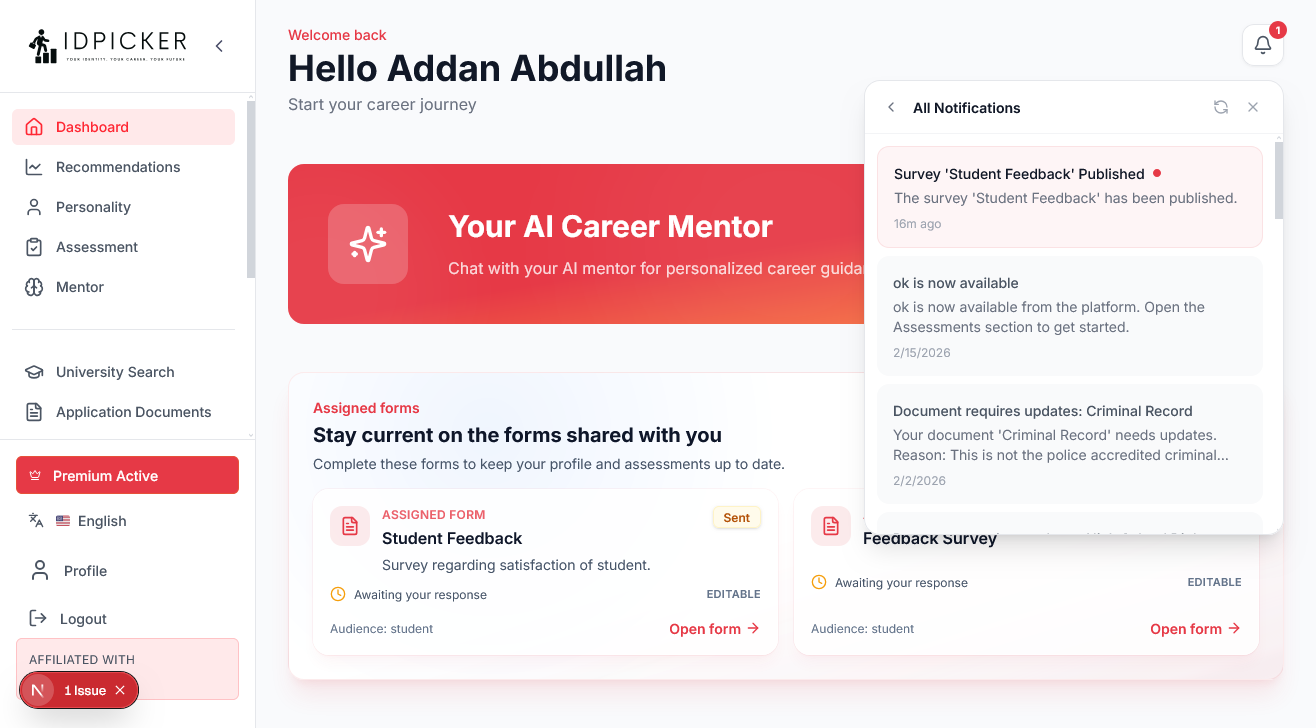
- In the full notifications list, unread items appear with a highlighted background or a blue dot indicator.
- Click any notification row to open it.
- The detail view shows:
- Title of the notification
- Full message body — may include instructions or links to take action
- Sender (e.g., your advisor’s name, or IDPicker System)
- Timestamp — when it was sent
- After you open it, the notification is automatically marked as Read and the unread badge count decreases.
3. Marking All as Read
If you have many unread notifications and want to clear the badge quickly:
- On the full notifications list page, click Mark All as Read.
- All notification rows are instantly marked as read.
- The red badge on the bell icon disappears.
Note: Marking notifications as read does not delete them. They remain in your list for reference.
4. Types of Notifications
| Type | What it means | What to do |
|---|---|---|
| Advisor Message | Your advisor sent you a note or update | Read the message and reply in the Chat module if needed |
| Form Assigned | An advisor or admin has added a new form for you to complete | Click the notification to go directly to the form and fill it in |
| Assessment Reminder | A scheduled or overdue assessment needs your attention | Click through to open the assessment and complete it |
| Parent Link Request Received | A parent has requested to view your account | Go to your Account Settings to approve or deny the link request |
| Certificate Issued | Your advisor has issued you a new certificate | Find it in the Certificates and Documents section to download |
| Application Document Update | Your advisor reviewed and updated the status of a document you uploaded | Check your Application Documents section for feedback |
5. Acting on a Notification
Most notifications include a direct action link inside the message body. Click the link to jump straight to the relevant page — for example, clicking a Form Assigned notification takes you directly to the form’s fill screen.
If a notification does not have a direct link, use the sidebar navigation to go to the relevant module manually.
Common Questions
| Situation | What to do |
|---|---|
| My bell shows a badge count but I cannot find unread notifications | Open the full inbox and look for the blue dot or highlighted row. The count may include system-level notices that appear without a visible highlight in all browsers |
| I accidentally marked everything as read before seeing a message | The notifications are still in your list. Scroll through and look for any you have not acted on yet |
| I am not receiving notifications about my forms | Check with your advisor to confirm the form was assigned to your account specifically. Also verify your notifications settings have not been muted |