Resources
How to find, filter, and download learning materials shared by your advisor
The Resources module acts as your personal digital library. Whenever your advisor, school, or organization shares a helpful document, spreadsheet, or PDF, it lands here.
1. Browsing the Resource Library
- From the main sidebar, click Resources.
- Wait a second for your personalized file grid to load.
- You will immediately see files that are explicitly assigned to you, as well as globally visible files shared by your organization.
Searching by Keyword
Know exactly what you are looking for?
- Click the Search bar.
- Type a matching keyword from the file’s title, description, or original file name.
- The list will instantly filter to matching documents.
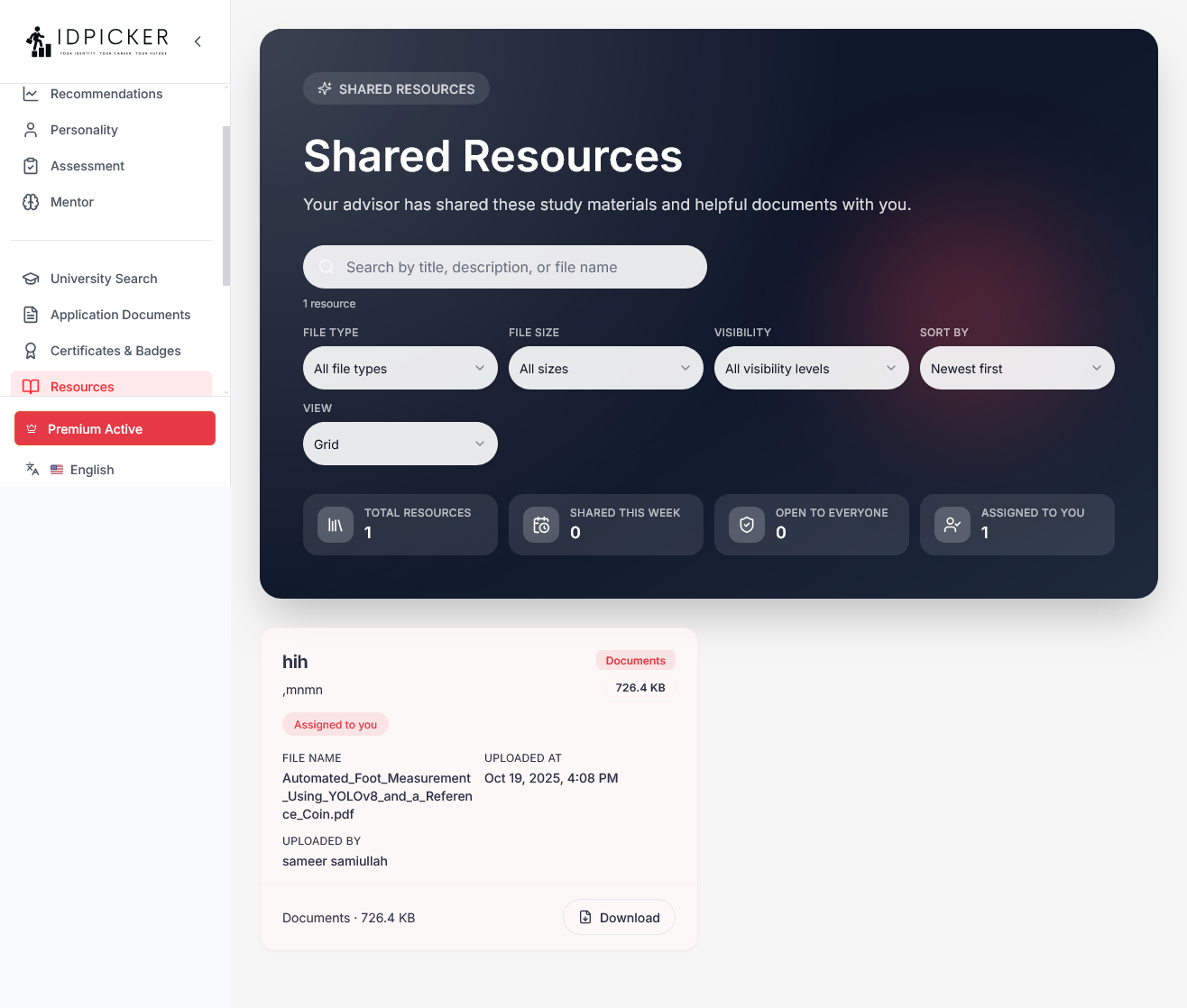
2. Filtering and Sorting Files
If your organization has shared hundreds of files, use these controls to narrow them down:
- File Type Filter: Only want to see PDFs or Excel sheets? Select the exact format.
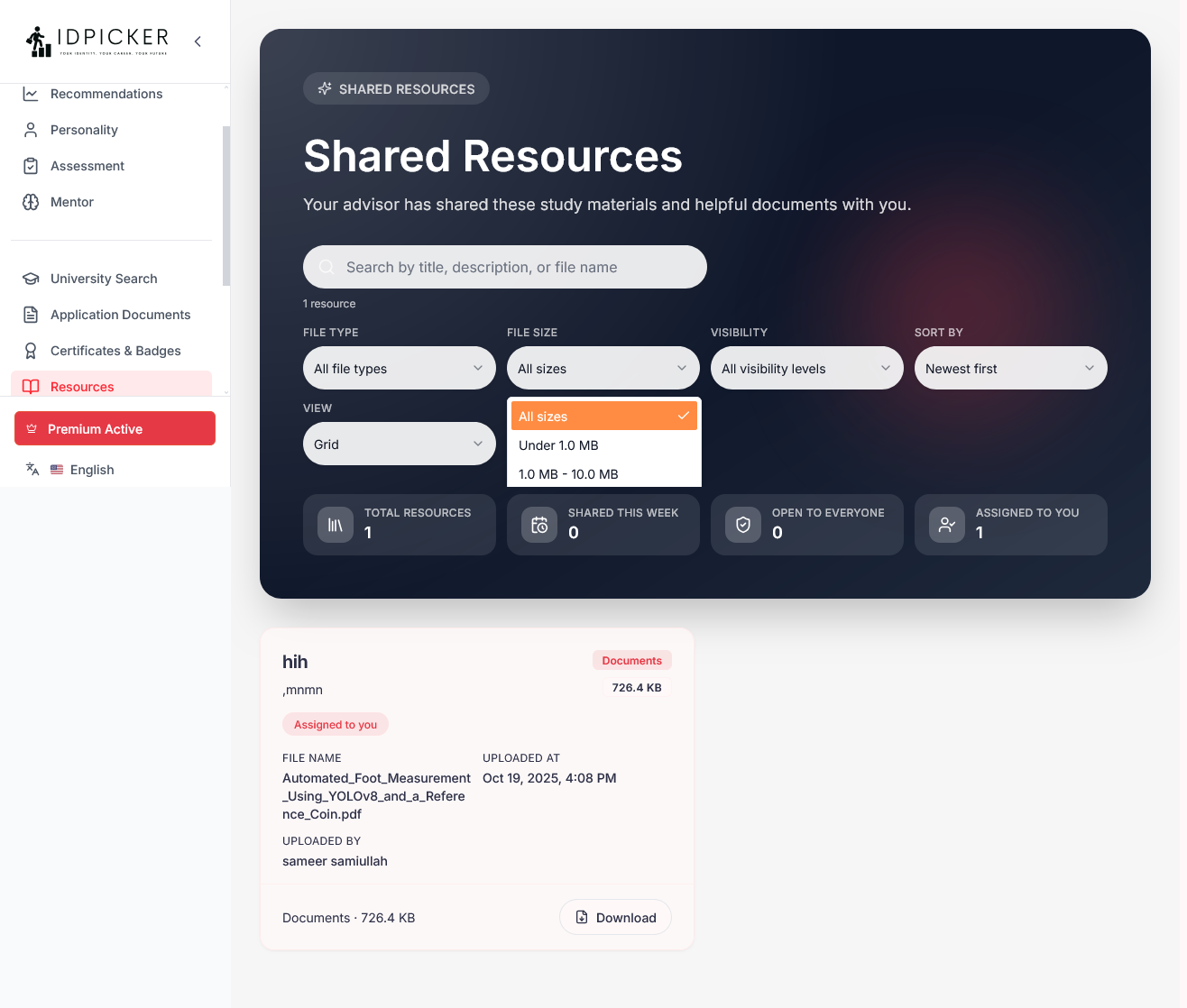
- Size Filter: Select Small, Medium, or Large files (helpful if you are on a slow cellular connection).
- Visibility Filter: Choose between All, Globally Visible, or Directly Assigned.
- Sort By: Change the ordering from Date Added, Alphabetical Name, or File Size.
- View Mode: Toggle between the spacious Grid view or the compact List view depending on your preference.
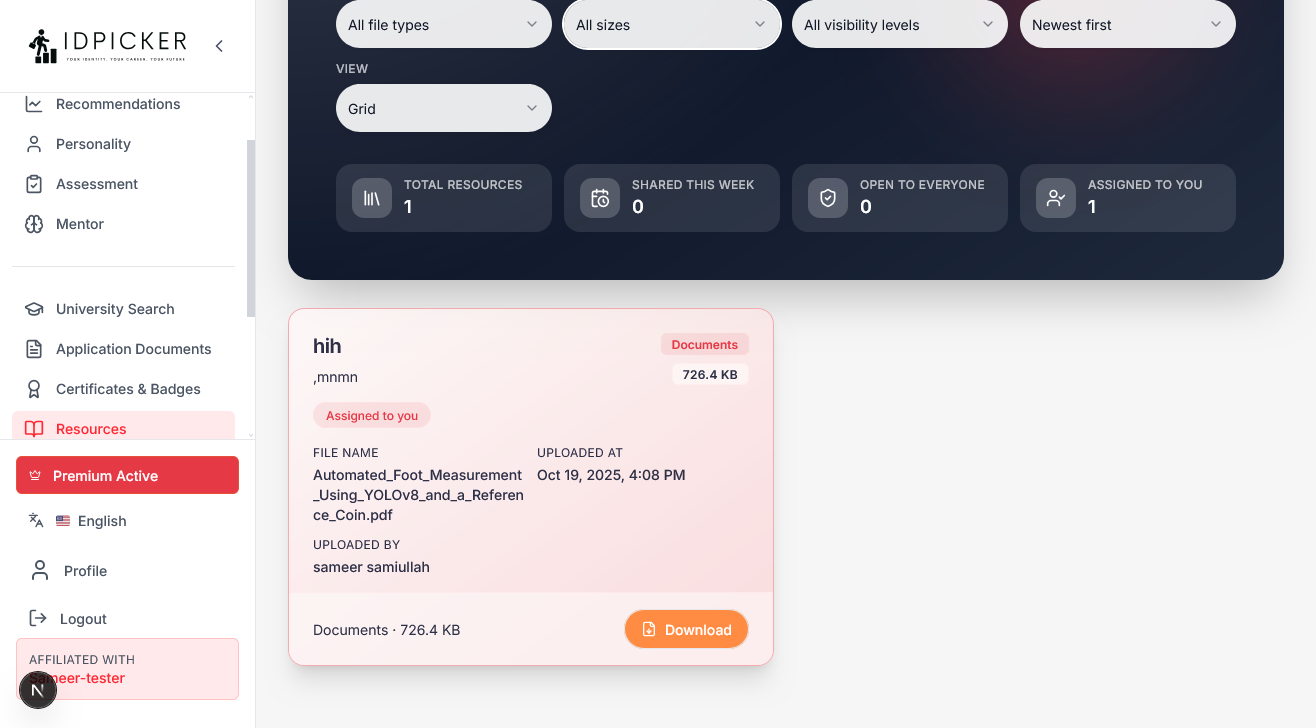
3. Downloading a Shared File
- Locate the card or row of the file you need.
- Click the Download button.
- Your browser will handle the secure download. Check your computer’s
Downloadsfolder when it finishes.
If a download fails: Check your internet connection first. If it still fails, refresh the entire page to ensure your login session has not quietly expired, then try downloading again.
Common Questions
| Situation | What to do |
|---|---|
| My advisor said they shared a file, but I cannot see it | They may have forgotten to assign it directly to your email. Ask them to verify the visibility settings on their end. |
| The file list keeps shuffling when I click things | The Sort By option applies instantly whenever a filter changes |
| A file card is missing a description | Advisors are not strictly required to type out extensive descriptions when uploading |