University Search
The University Search module is your comprehensive database for discovering higher education programs worldwide. This guide explains how to use the search engine efficiently to build your target list.
1. Basic Keyword Search
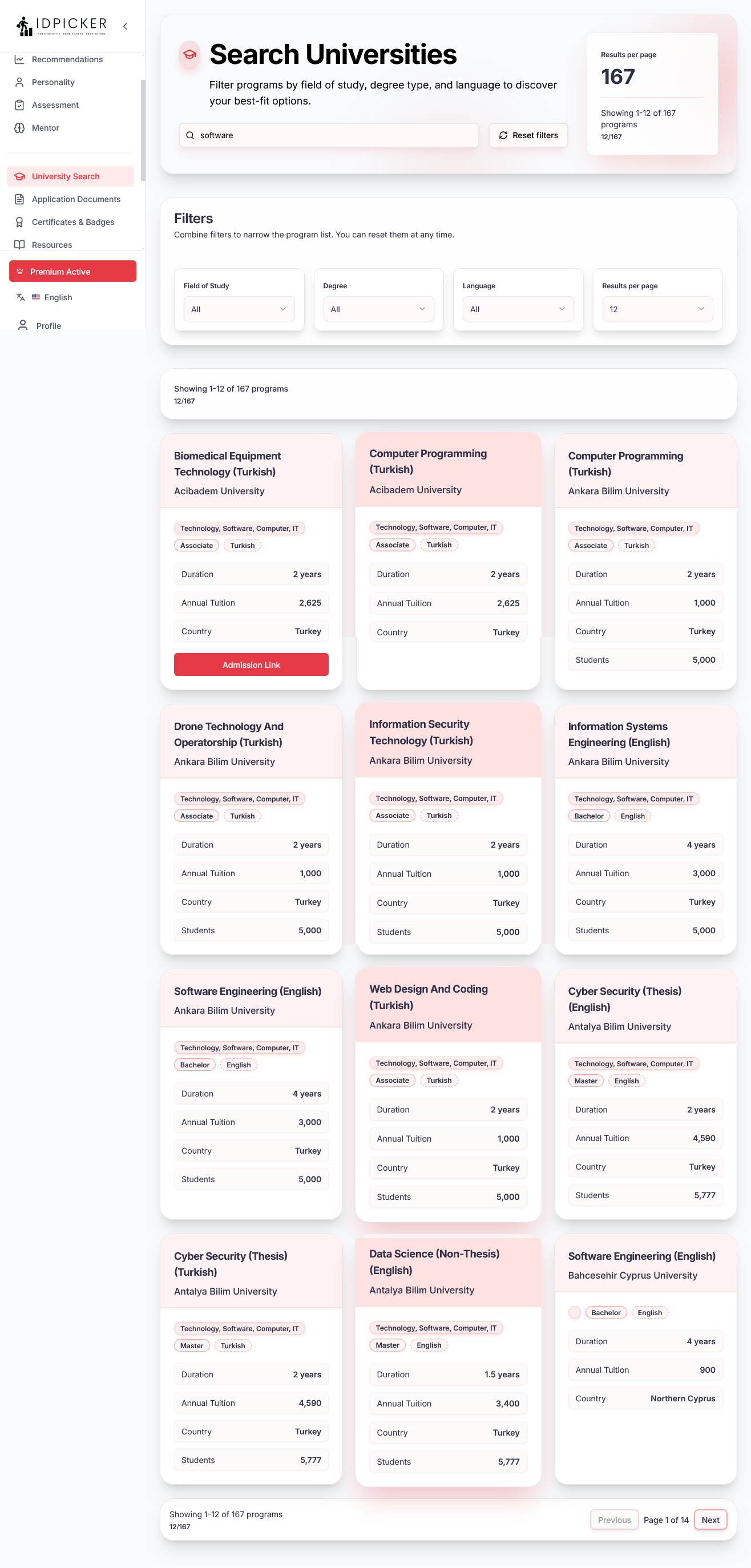
- In the sidebar, click University Search.
- Wait a moment for the filter panel and the default results area to load.
- Click the Search input box at the top.
- Type a university name (e.g., Harvard) or a program keyword (e.g., Computer Science).
- Pause briefly — the search runs automatically as you type to prevent unnecessary reloading.
- Review your refined results.
2. Power Filtering
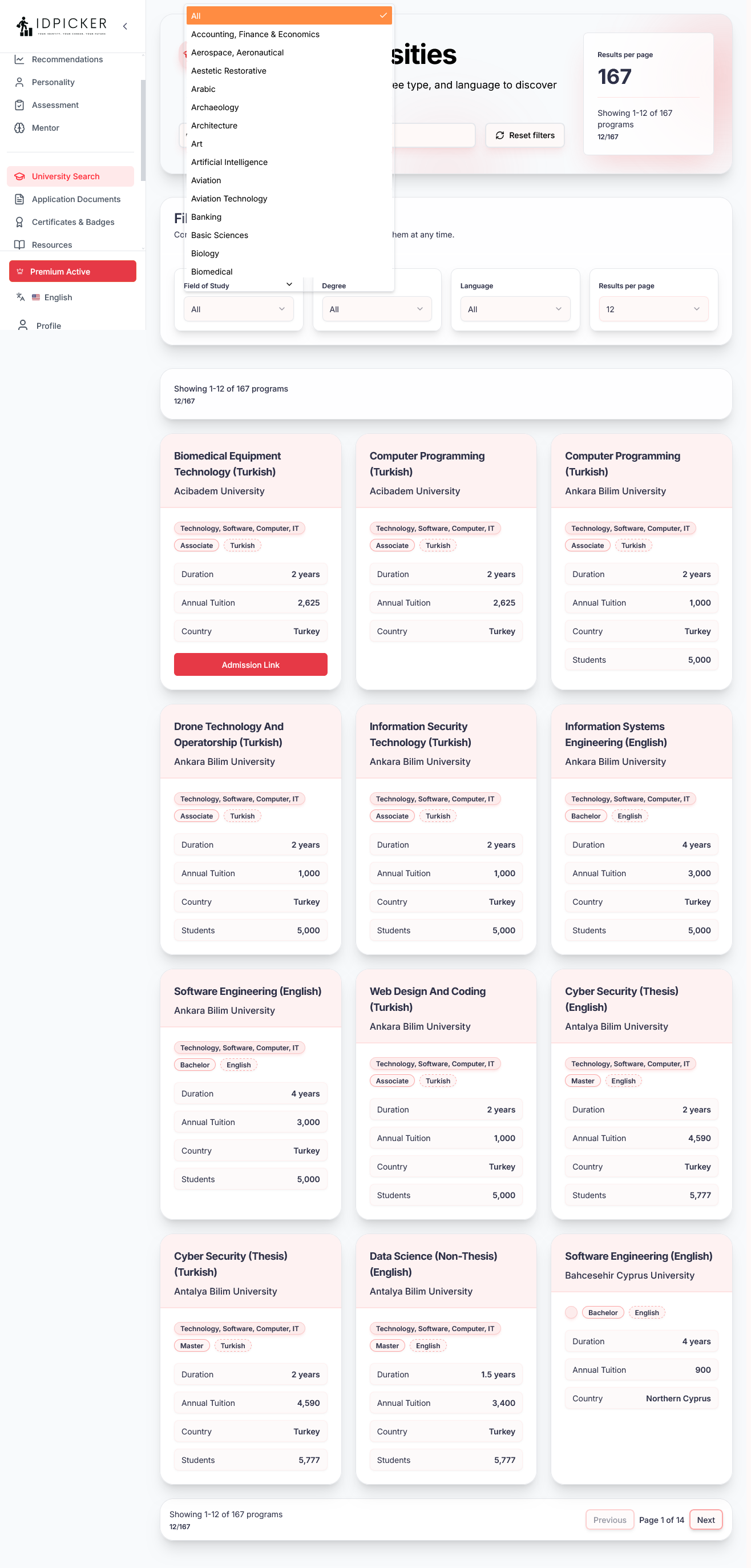
To drill down into specific criteria, use the filter panel on the left (or in the top dropdowns, depending on your device).
1. By Category (Field of Study)
Click the Category dropdown and select your overarching field, such as Engineering, Arts, or Medicine. The results will instantly filter to programs mapped to that category.
2. By Degree Type
Looking for a Bachelor’s, Master’s, or PhD? Click the Degree dropdown to restrict results to exactly what you need.
3. By Language of Instruction
If you want to study entirely in English in a non-English speaking country, this filter is life-saving. Select the instruction language to filter out programs you cannot attend.
Warning: Mixing too many strict filters at once (e.g., Aerospace Engineering, PhD, Turkish language, in Germany) will likely return zero results. If you get an empty page, clear your filters one by one until results reappear.
3. Managing Pagination (Load More)
When reviewing results:
- Scroll to the bottom of the current page of university cards.
- Click Load More (or use the pagination numbers 1, 2, 3…) to fetch the next set.
- You can change how many cards load at once by tweaking the Page Size control (e.g., 6, 12, 24).
Note: Any time you apply a new filter or type a new keyword, you are automatically bumped back to Page 1 so you do not miss top results.
4. How to Compare Programs Efficiently
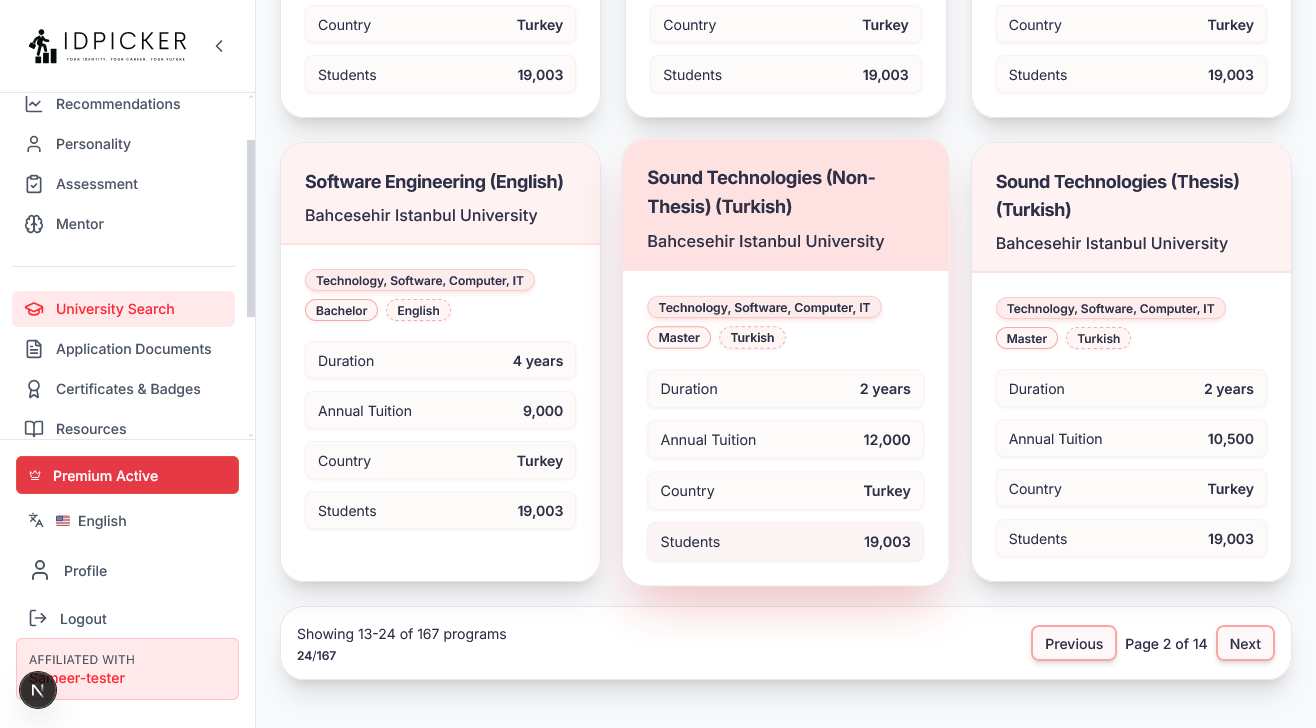
When building your shortlist, we recommend focusing on these core factors displayed on every card:
- University Name & Program Name
- Degree Level
- Language of Instruction
- Tuition Cost (if available)
- Duration (years)
- Country / City
Keep a notebook or spreadsheet open alongside IDPicker to save your top targets!
Common Questions
| Situation | What to do |
|---|---|
| The search bar feels laggy | Input is deliberately “debounced” (delayed) by a few milliseconds so it does not overwhelm the server while you type. Just pause when finished! |
| My results completely disappeared | You probably applied an overly strict combination of filters |
| The card order suddenly changed | When you apply a new filter, a brand new sorted list is retrieved from the database |