Assessments and Forms
How to globally author, import, and manage the platform’s core assessment tools
While Advisors can create localized forms for their specific students, Super Admins control the global Assessments and global Forms that apply across the entire IDPicker ecosystem.
1. Creating a Global Assessment
- In the sidebar, open Assessments.
- Click Create Assessment.
- Provide the foundational metadata:
- Title & Description: Make these public-friendly.
- Category: (e.g., Psychological, Placement, Feedback).
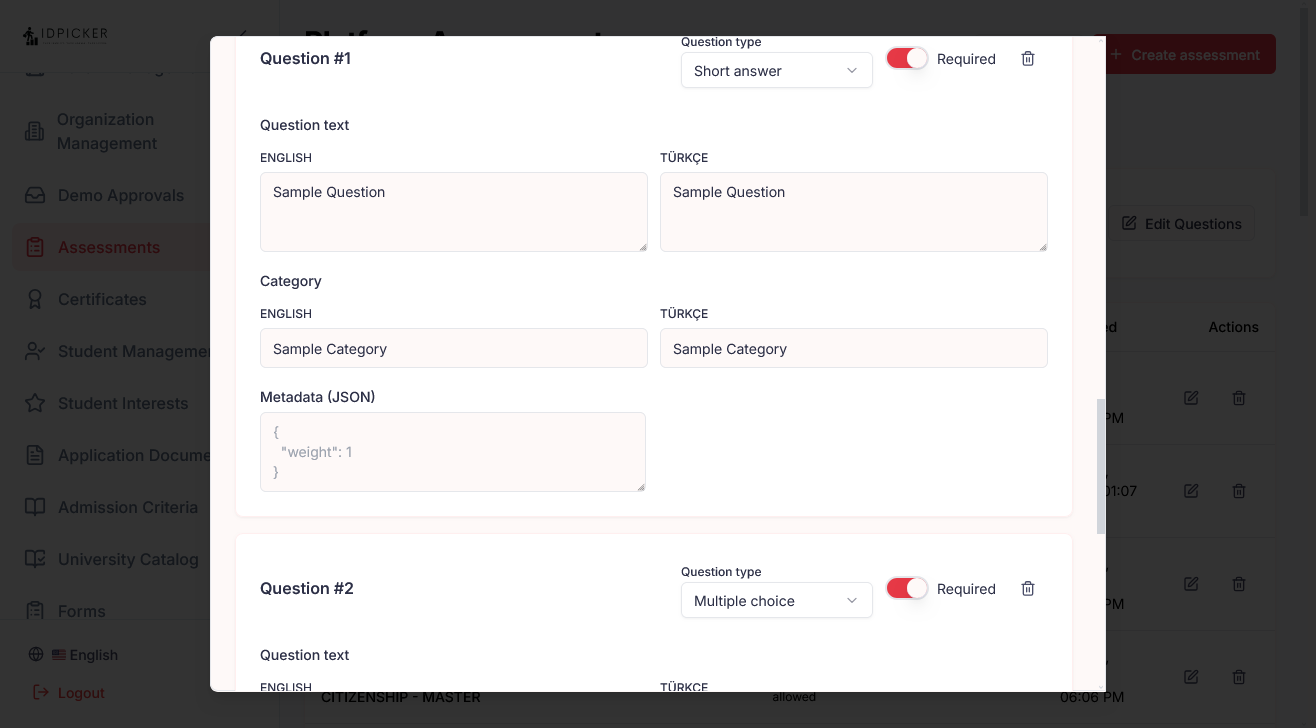
- Enter the visual builder to add questions. Supported formats include:
- Rating Scales (1-5, 1-10)
- Multiple Choice (Single or Multi-select)
- Short/Long Answer text fields
- Yes/No Booleans
- Configure required flags and save.
Testing is Mandatory: Before distributing a global assessment to thousands of students, use a test student account to verify the logic, spelling, and user experience.
2. Bulk Importing Assessments
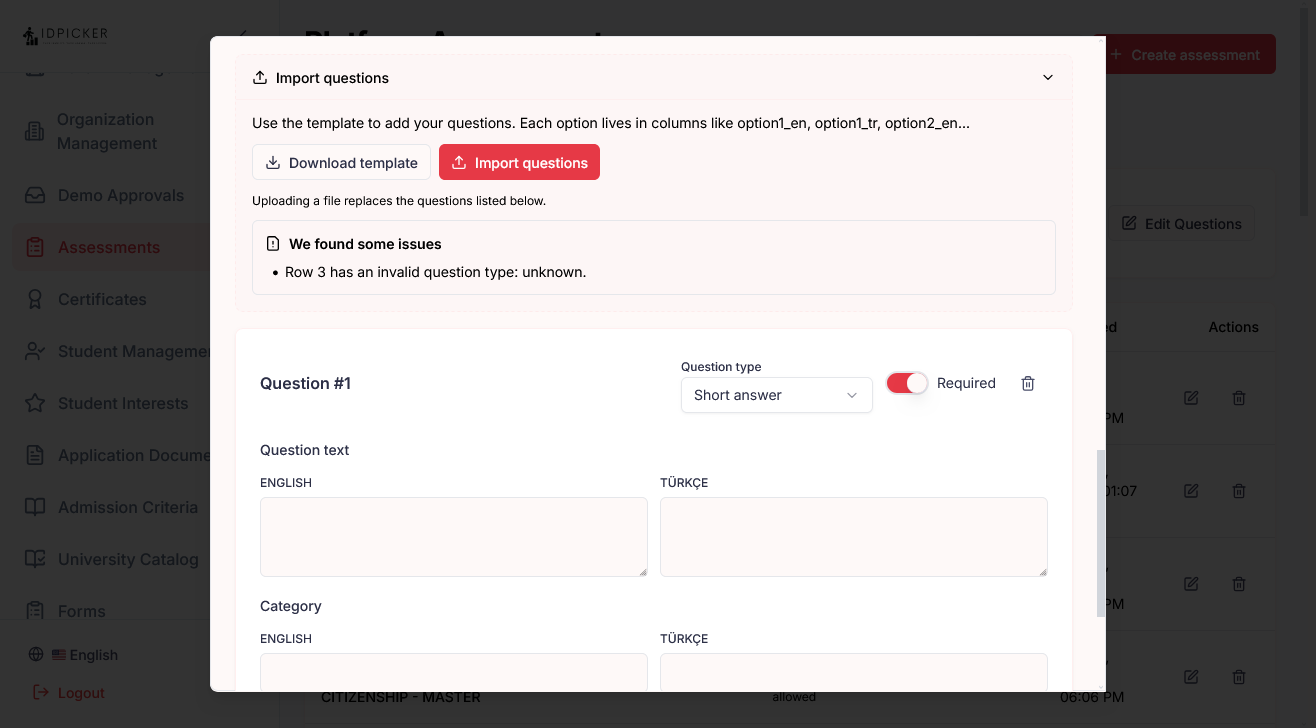
If you already have established paper-based psychometrics, you can import them directly rather than typing hundreds of questions manually.
- From the Assessments list, click the Upload action.
- Prepare a
.csvor.xlsxfile according to the platform’s strict import schema (Columns: Question Text, Type, Options, Required). - Select and upload the file.
- Review the Import Preview. The system will flag any rows with invalid schemas or missing options.
- If the preview is clean, click Confirm Import.
3. Global Forms Management
Global Forms are distinct from Assessments—they are used for temporary data collection, surveys, or registration funnels.
- Open the Forms module.
- Create your form schema and mark it Published.
- To view incoming data safely, click the Responses button next to the active form.
- You can see the aggregate response count and drill down into individual submission rows.
Common Questions
| Situation | What to do |
|---|---|
| My Assessment Import throws a “Broken Options” error | You likely uploaded a Multiple Choice question row but left the Options column blank in your spreadsheet. Fix the sheet and re-upload |
| I see 100 responses but the counter only says 50 | Refresh the list view. The counter caches to improve performance and may need a manual refresh, or check if you have an active date/pagination filter applied |
| Should I use a Form or an Assessment? | Use Assessments for core psychological/educational profiling that impacts Recommendations. Use Forms for temporary surveys and unstructured data collection |