Advisor Login and Dashboard
As an Advisor, your platform access is tailored to your operational role. This guide covers how to get logged in securely and how to interpret your main dashboard.
1. Advisor Login
Depending on your organization’s setup, you will access the platform either via a custom organization link or the main advisor portal. (See Access URLs if you are unsure).
- Open the Advisor Login page.
- Enter your registered Email and Password.
- Click Sign In.
- The system initializes your specific role and permission set, then drops you onto your Dashboard.
Why is my dashboard missing certain modules? If you are a “Sub-Advisor,” your access is strictly limited to the permissions your primary Advisor delegated to you. If you cannot see a module, you do not have permission for it.
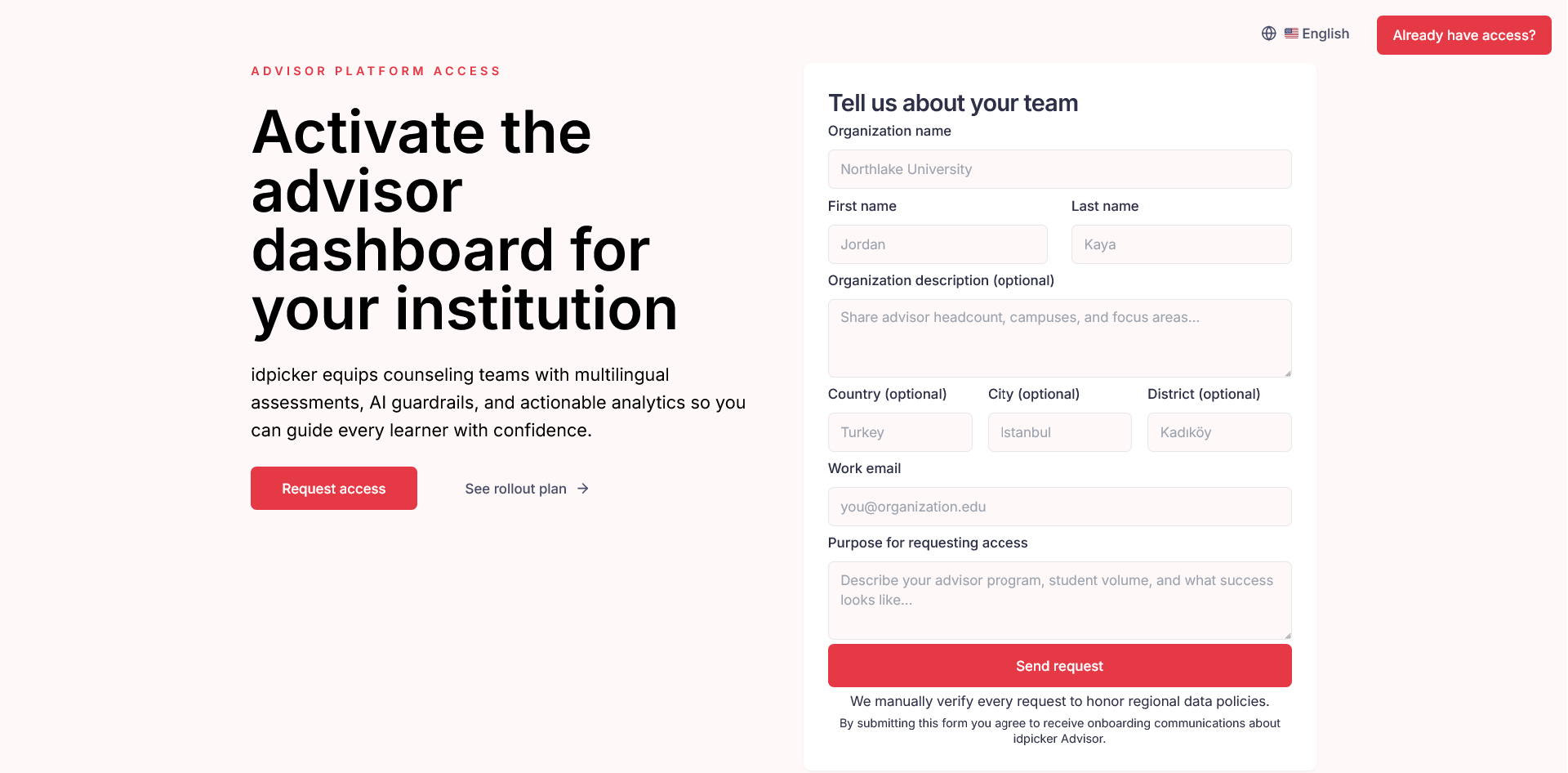
2. Setting Up Your Account (First Time)
If you were invited to join as an advisor or sub-advisor by your organization lead:
- Check your email for an invitation from IDPicker.
- Click the Setup Password link in that email.
- You will be taken to a secure token-validation page.
- Enter a strong new password, confirm it, and submit to activate your account.
- Return directly to the login page and sign in.
3. Password Reset Flow
If you have forgotten your password:
- On the login page, click Forgot Password.
- Enter your advisor email address.
- You will receive a reset link. Click it, set a new password, and verify the strength indicator.
- If the link says it is expired, immediately request a new one from the login page.
4. Understanding Your Dashboard
The Advisor Dashboard serves as your daily command center.
- KPI Widgets (Top Row): These blocks show quick metrics regarding your linked students, such as total student count, recently completed assessments, and pending forms.
- Assigned Forms Block: Immediately see which of your forms currently have pending responses from students.
- Main Navigation (Sidebar): Use the sidebar to quickly jump between managing Students, organizing Groups, distributing Resources, or handling Support/Chat.
Tip: If your platform supports multiple languages, use the language toggle in the header to switch your interface language instantly.
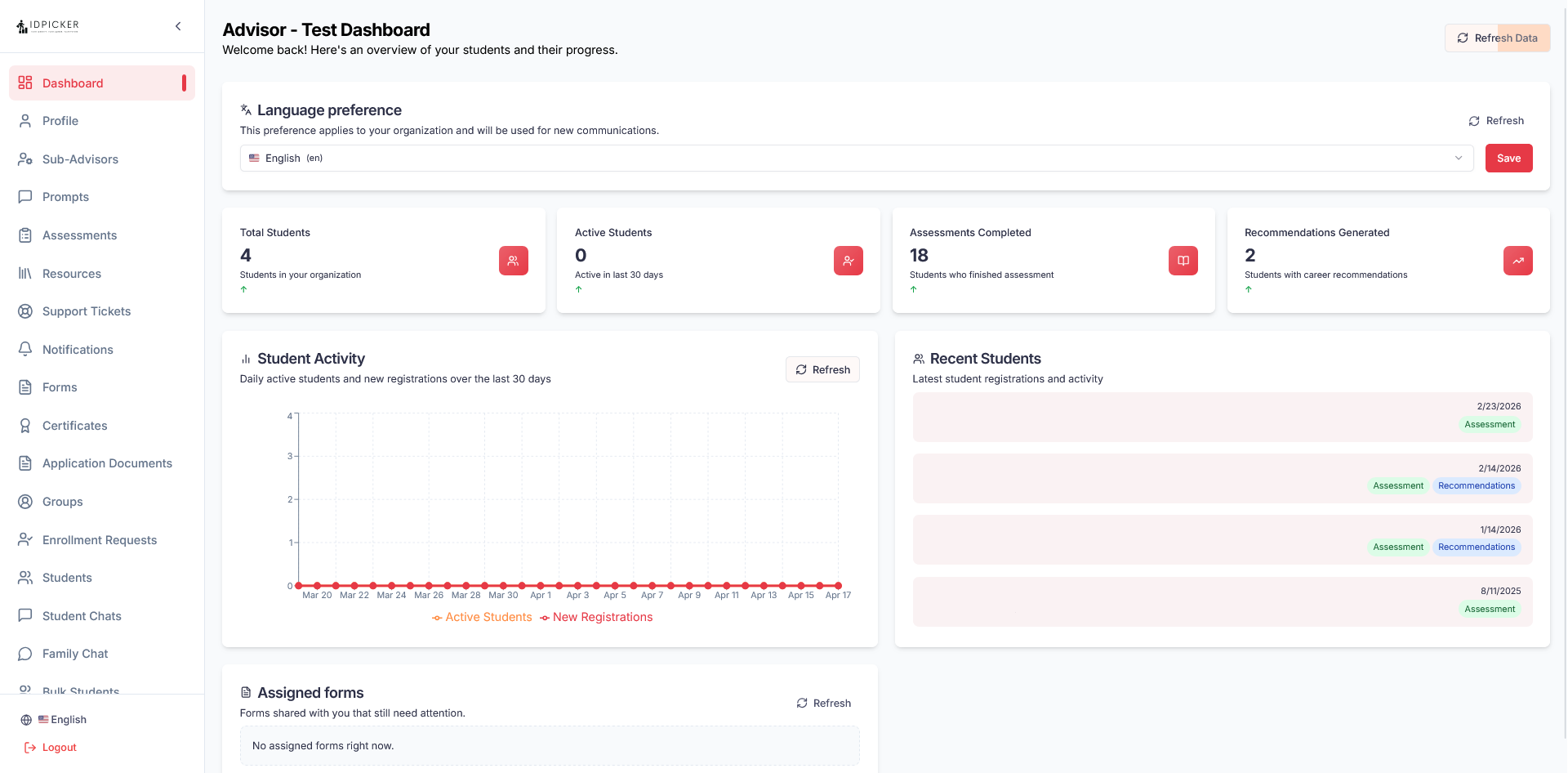
Image placeholder: Add screenshot of the full advisor dashboard with KPI widgets at the top and the sidebar modules listed on the left.
Common Questions
| Situation | What to do |
|---|---|
| I logged in but cannot see the “Groups” module | Your account is likely a Sub-Advisor with restricted permissions |
| My dashboard looks partially loaded or broken | Wait a few seconds for all underlying API calls to finish, then refresh the page once |
| The password setup link in my email doesn’t work | Security tokens expire quickly. Ask your administrator to resend the invitation, or use the “Forgot Password” flow if the account was already created |