Notifications
How to compose, target, and broadcast announcements to your student cohorts
The Notifications module is your mass-communication tool. Instead of sending hundreds of individual emails, use notifications to broadcast platform-native announcements, reminders, and alerts directly to student dashboards.
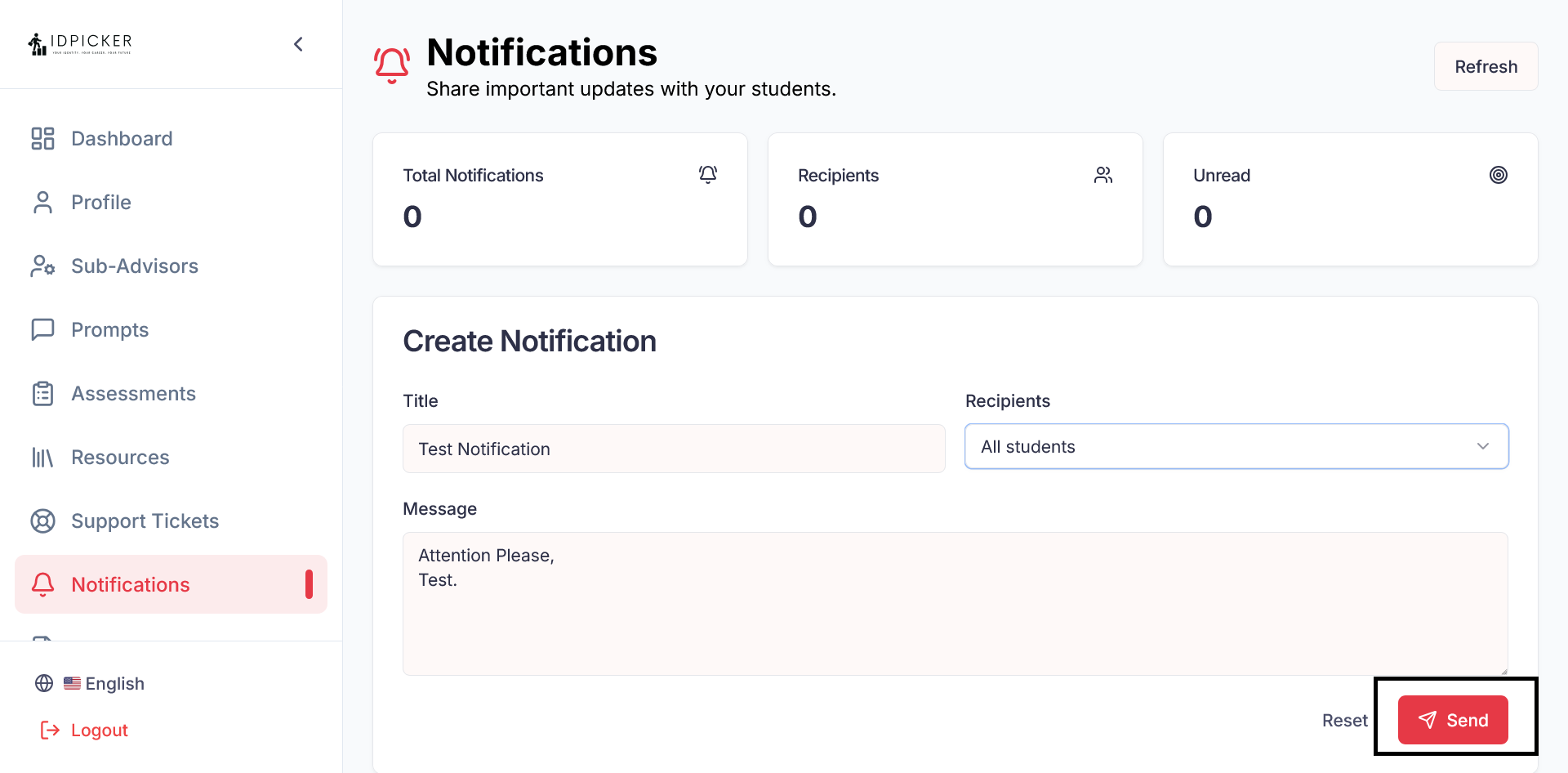
1. Creating a New Broadcast
- In the sidebar, click Notifications.
- You will see a history of your past broadcasts. Click Create Notification.
- Enter a clear, attention-grabbing Title.
- Type your Message Body. Keep it concise but ensure all necessary links or action items are included.
- Select your Target Type:
All Students: Broadcasts to every single student in your organization. Use sparingly.Selected Users: Allows you to hand-pick individuals.Selected Groups: The most common option. Targets a pre-made cohort (e.g., “Seniors”).
- If you chose Users or Groups, a selection interface will appear. Pick your targets.
- Click Send (or Create).
- The notification is immediately dispatched and will appear in your history list.
2. Reviewing Delivery and Effectiveness
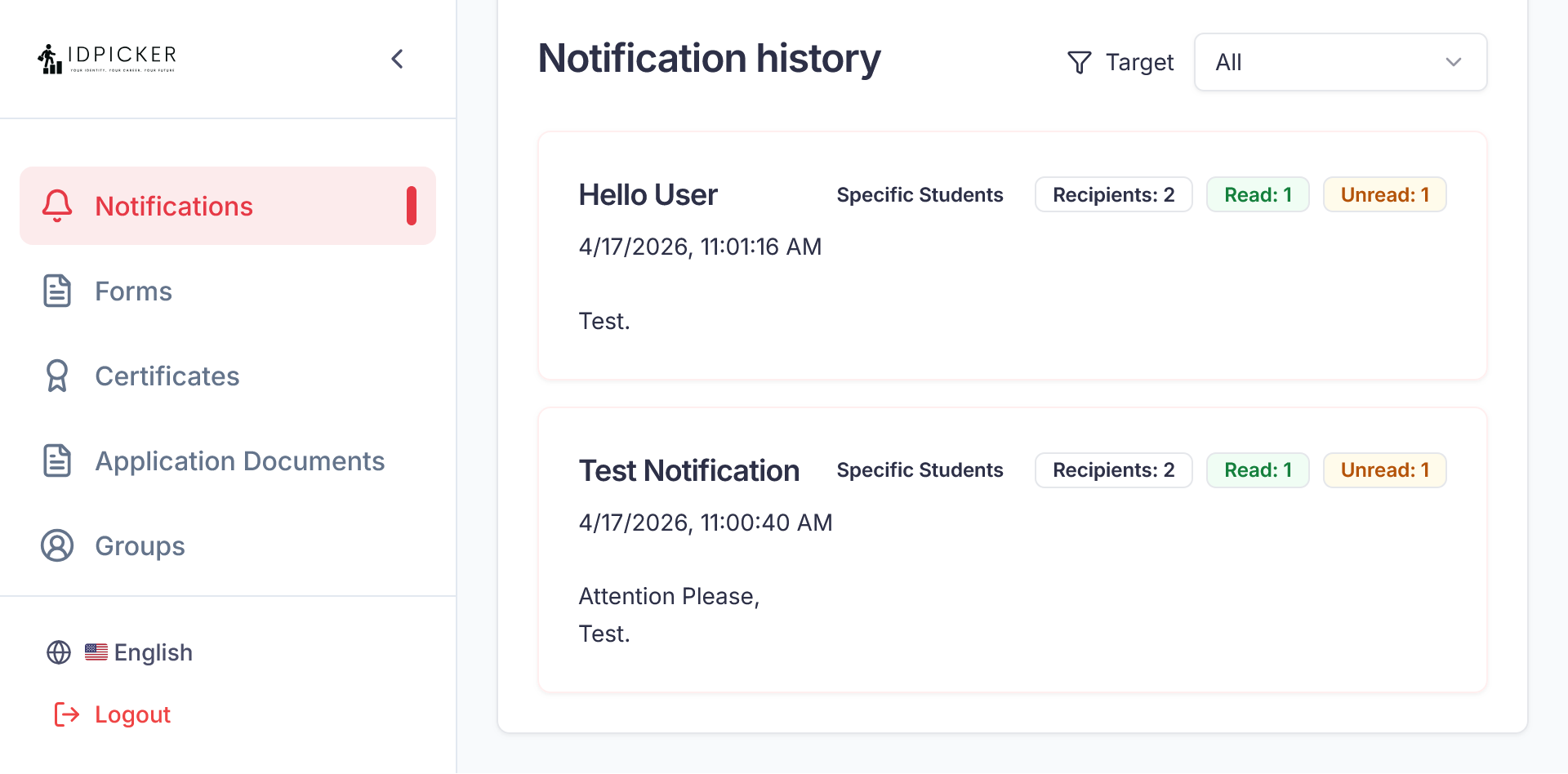
Unlike email, platform notifications allow you to track engagement. In your notification history list, you can verify:
- Target Type: A quick reminder of who received the broadcast.
- Created Date: Exactly when it went out.
- Total Recipients: The absolute number of unique students who received the ping.
- Read Count: How many students have clicked on the notification to read the full body.
- Unread Count: How many students have ignored or not yet seen the alert.
3. Filtering Your Broadcast History
If you need to check what you sent months ago:
- Apply the Target Type filters (e.g., show me all messages sent to “All Students”).
- Use the search input to find a specific keyword or campaign title.
- Review the historical Read Counts to determine which types of subject lines get the most engagement from your roster.
Common Questions
| Situation | What to do |
|---|---|
| The read rate is extremely low | Give it 24 hours. Students only see notifications when they actively log in to their dashboard |
| I accidentally sent a notification to the wrong group | Platform notifications are instant and generally cannot be un-sent. Send a follow-up correction immediately to the same wrong group |
| The “Selected Groups” option is greyed out | You cannot target groups if you have not created any groups yet. See the Groups guide |