Assigned Forms
Detailed click-by-click assigned forms walkthrough
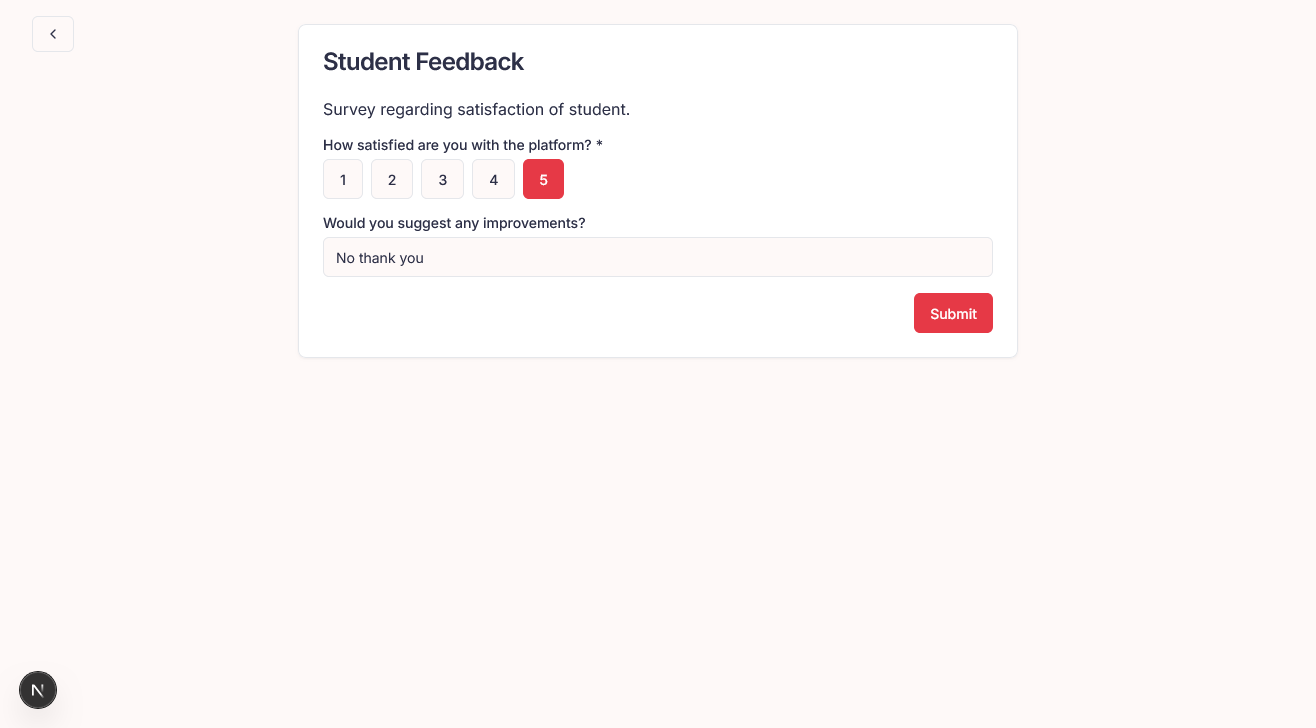
Assigned forms are organization/advisor forms that students complete from dashboard or direct link.
1. Open Assigned Form from Dashboard
- Open Dashboard.
- Locate Assigned Forms block.
- Click Open Form on pending item.
- Wait for form page to load.
2. Understand Form Header
At top, you may see:
- Organization banner image
- Form title
- Form description
- Editability state
3. Complete Form Fields (Click-by-Click)
For each field:
- Read label and required indicator.
- Click input control.
- Enter/select response.
- Continue to next field.
Supported field patterns include text, textarea, number, email, dropdown, radio, checkbox, date/time/datetime, and rating.
4. Submit Response
- Scroll to submit action.
- Click Submit.
- Wait for success message.
- Return to dashboard.
5. If Form Is Read-Only
If already submitted and editing is disabled:
- Inputs are locked.
- You can review previous response but cannot modify.
Common Student Questions
Q: I submitted but cannot edit now. A: Form is configured with no post-submit editing.
Q: Required field warning appears. A: Fill all required fields marked with required indicator.
Q: I cannot see one field my friend has. A: Field set depends on assigned form configuration.