Authentication
Everything students need to create an account, sign in, and recover access starts here. Follow each section from top to bottom the first time through; returning users can jump directly to the relevant flow.
1. Before You Begin
Make sure you have:
- The student login URL for your environment — see Access URLs
- A valid email address you can check immediately
- A stable internet connection and an up-to-date browser
2. Sign In with Email and Password
This is the fastest path for returning students.
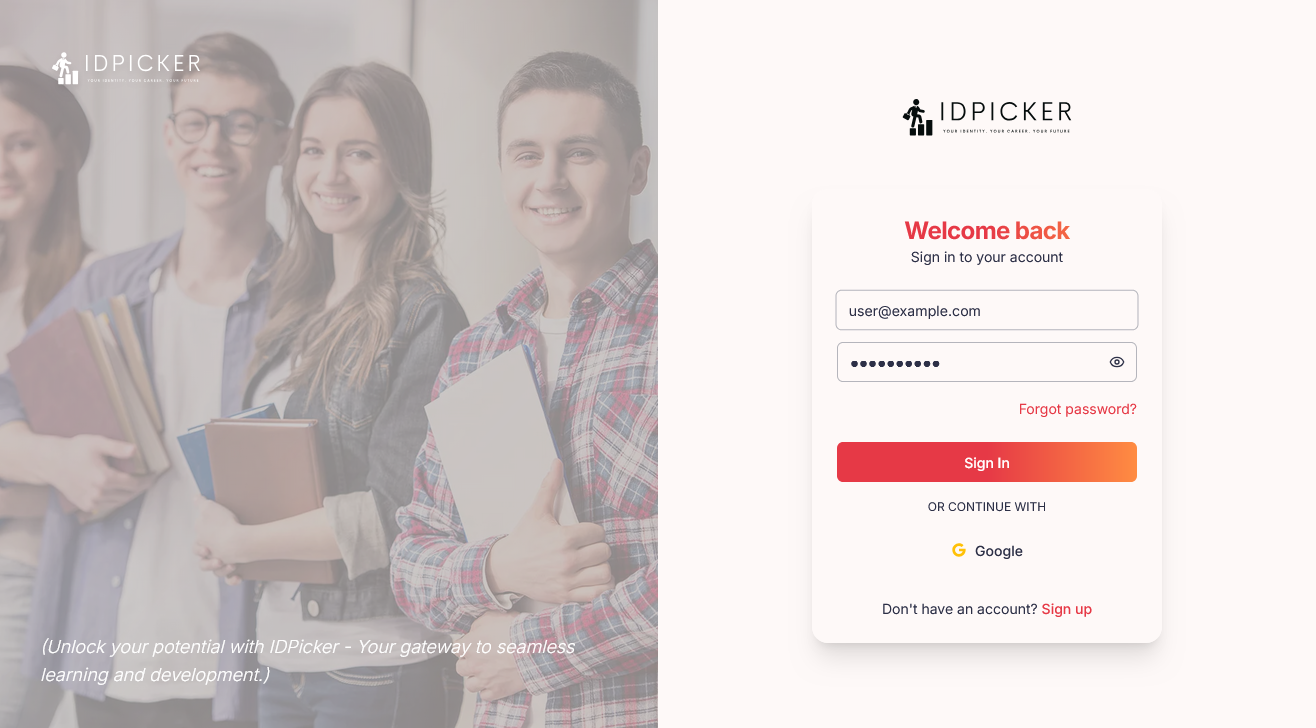
- Open the student login URL.
- Click the Email field and type your registered email.
- Click the Password field and type your password.
- (Optional) Click the eye icon next to the password field to reveal what you typed.
- Click Sign In and wait for the redirect.
What happens next:
- You land on your Dashboard.
- If you were navigating to a specific page before login, you are sent directly there instead.
If sign-in fails:
- Double-check for typos — passwords are case-sensitive.
- If you see a message about email verification, follow the Verify Your Email section below.
- If you have forgotten your password, use Forgot Password.
3. Sign In with Google
Faster sign-in without a separate password.
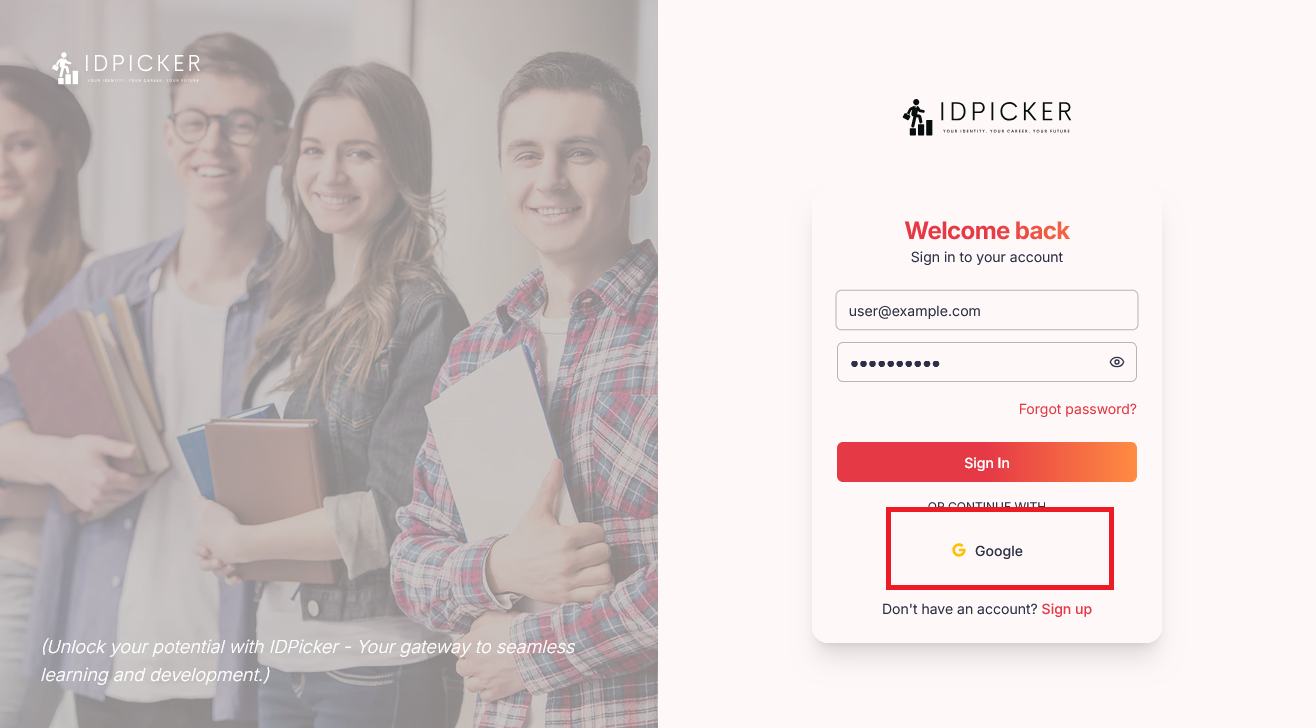
- Open the student login page.
- Click Continue with Google.
- A Google account picker opens — select the account you want to use.
- Approve the consent screen if prompted.
- You are redirected back to IDPicker and land on the dashboard.
If the login window stays on the same page:
- Your browser may be blocking popups. Allow popups for this site and try again.
- Make sure you are not using a private/incognito window with strict tracking prevention.
4. Register a New Account
New students follow a multi-step wizard. The exact steps depend on whether you received an invitation link.
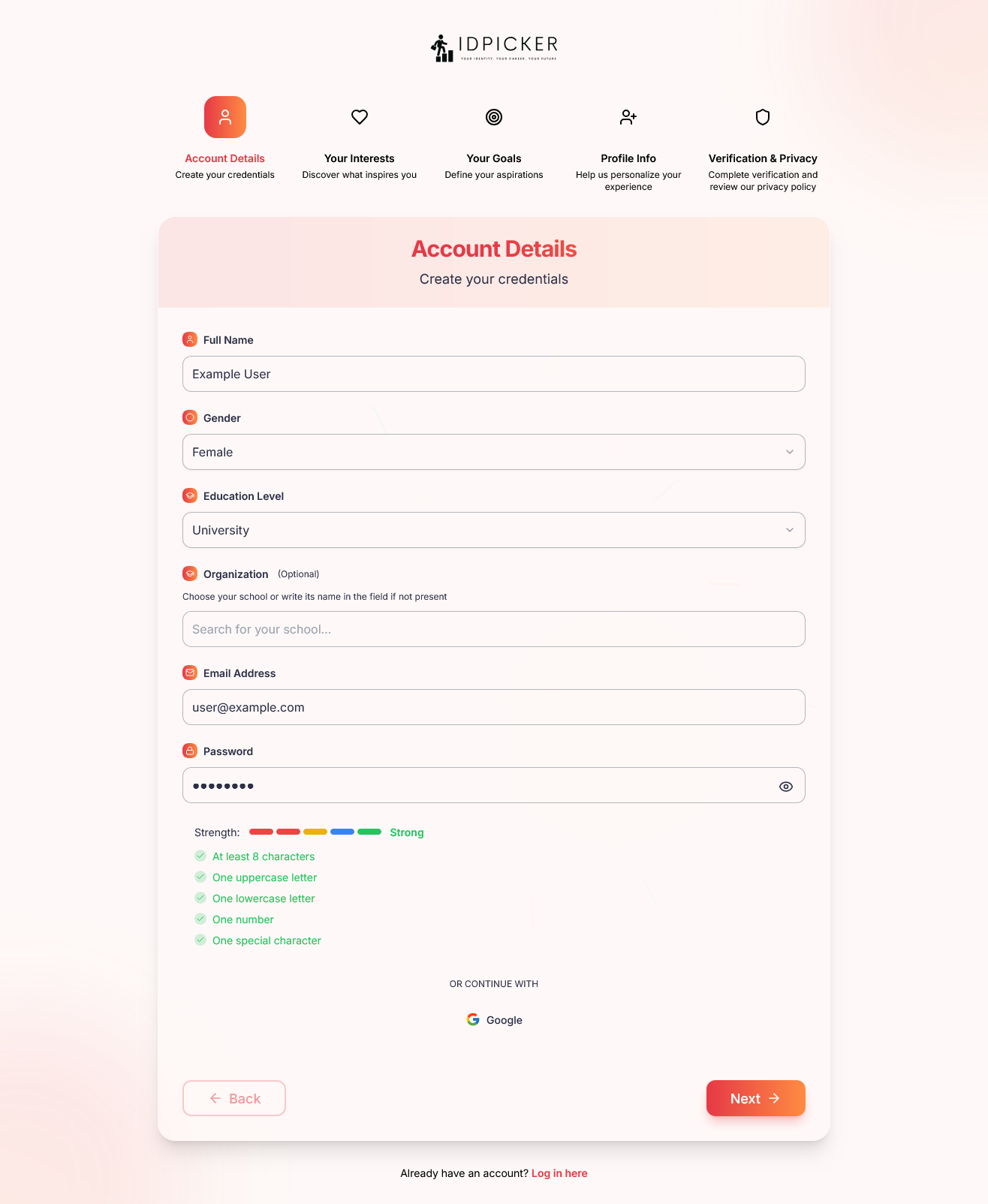
- Click Sign Up on the login page.
- Fill in your name, email, and a strong password.
- Password must contain at least one uppercase letter, one number, and one special character.
- Confirm the password and check the consent checkbox.
- Complete the interests and goals step.
- Fill out your profile (education level, gender, social links, occupation).
- Select an organization if prompted, or continue with invitation-prefilled values.
- Complete the human verification step.
- Click the final Register button.
Tip: If you were invited by an advisor, your organization field may already be filled in. Do not change it unless instructed.
Common registration blockers:
- Duplicate email → use a different address or try Forgot Password if you already registered.
- Consent checkbox not checked → scroll down and tick the box.
- Weak password → make sure it meets all strength requirements shown on screen.
5. Verify Your Email
After registration, IDPicker sends a verification email.
- Open your email inbox (check your spam/junk folder too).
- Find the email from IDPicker with subject Verify your email.
- Click the verification link inside.
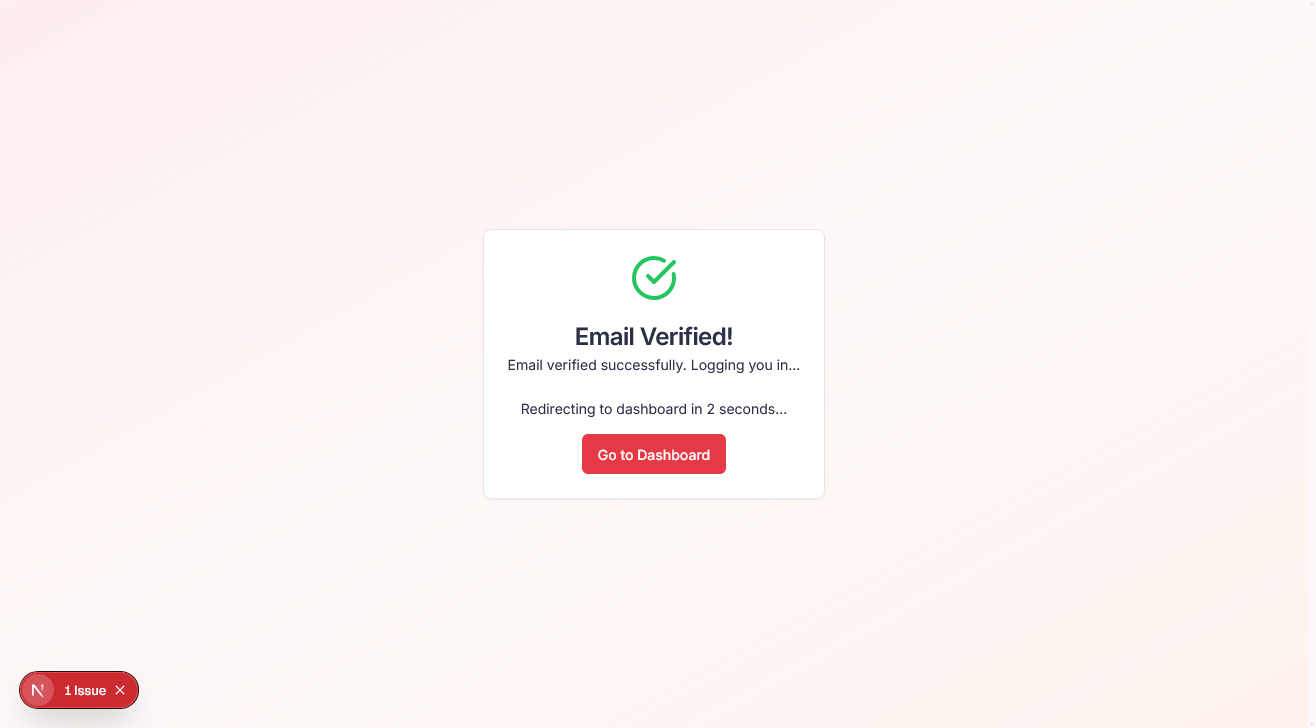
- Wait for the verification confirmation page.
- Once verified, you are directed to your dashboard or profile completion.
If the link says it has expired:
- Return to the login page.
- Enter your email and click Resend Verification Email.
- Open the new email and click the fresh link.
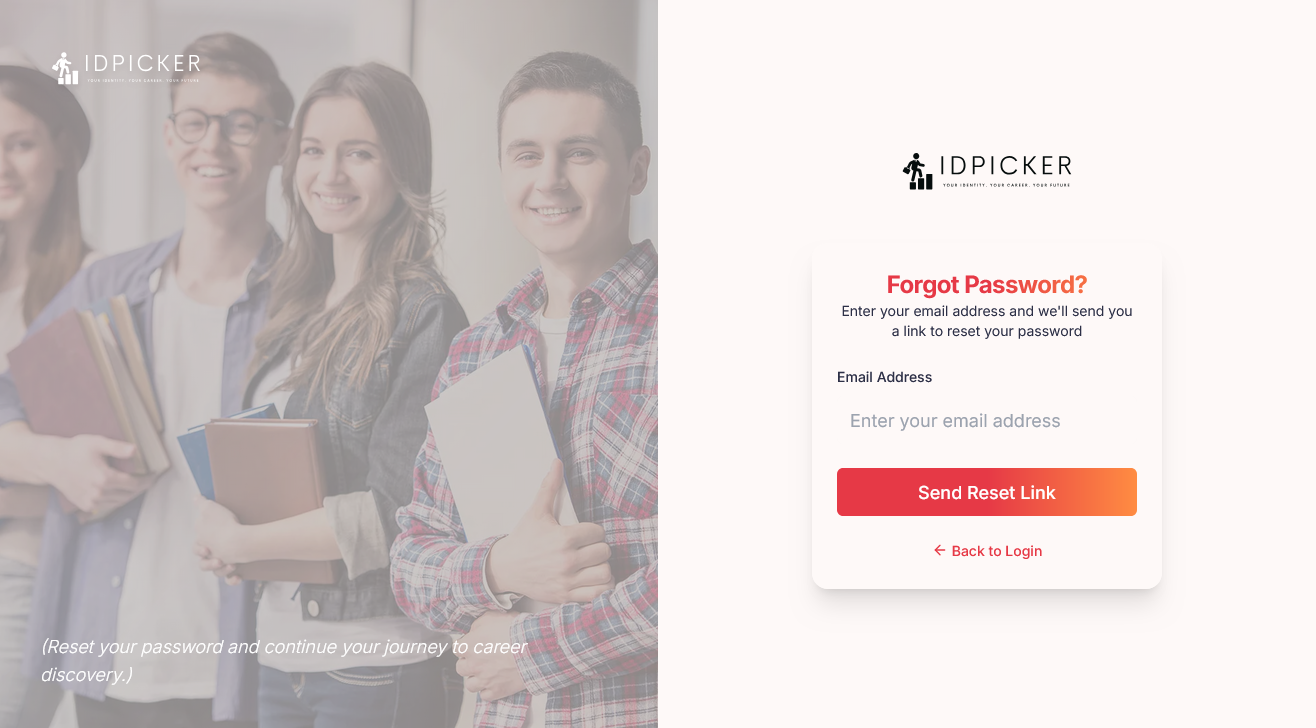
6. Forgot Password
Use this if you cannot remember your current password.
- Open the login page and click Forgot Password.
- Enter your registered email address.
- Click Send Reset Link.
- Check your inbox and spam folder for the reset email.
7. Reset Password From the Email Link
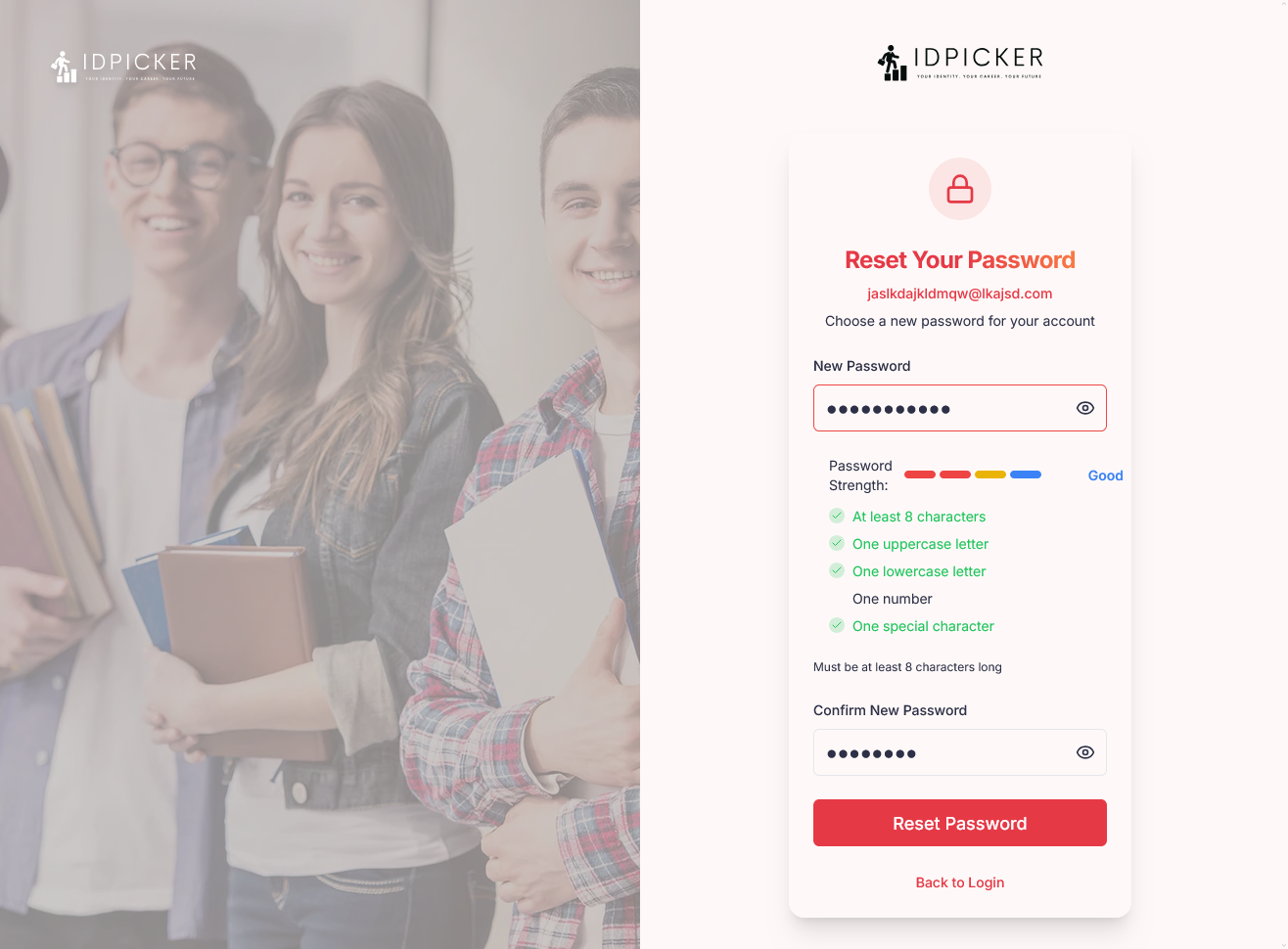
After requesting a reset, you will receive a link by email.
- Click the link from the IDPicker reset email.
- Wait a moment for the token to be validated.
- Enter your new password.
- Enter the same password again to confirm.
- Watch the strength indicator — make sure it reaches acceptable strength.
- Click Reset Password.
- Return to the login page and sign in with your new password.
If the link says the token is invalid or expired:
- Request a new reset link from the Forgot Password step above.
Common Questions
| Situation | What to do |
|---|---|
| Correct password rejected | Likely unverified email — resend verification from the login page |
| Google login popup closed immediately | Enable popups for the IDPicker domain in your browser settings |
| Reset link opens but password field is grayed out | Token expired — request a fresh reset link |
| Registration stuck on verification | Check spam folder; if email is over 30 minutes old, resend |