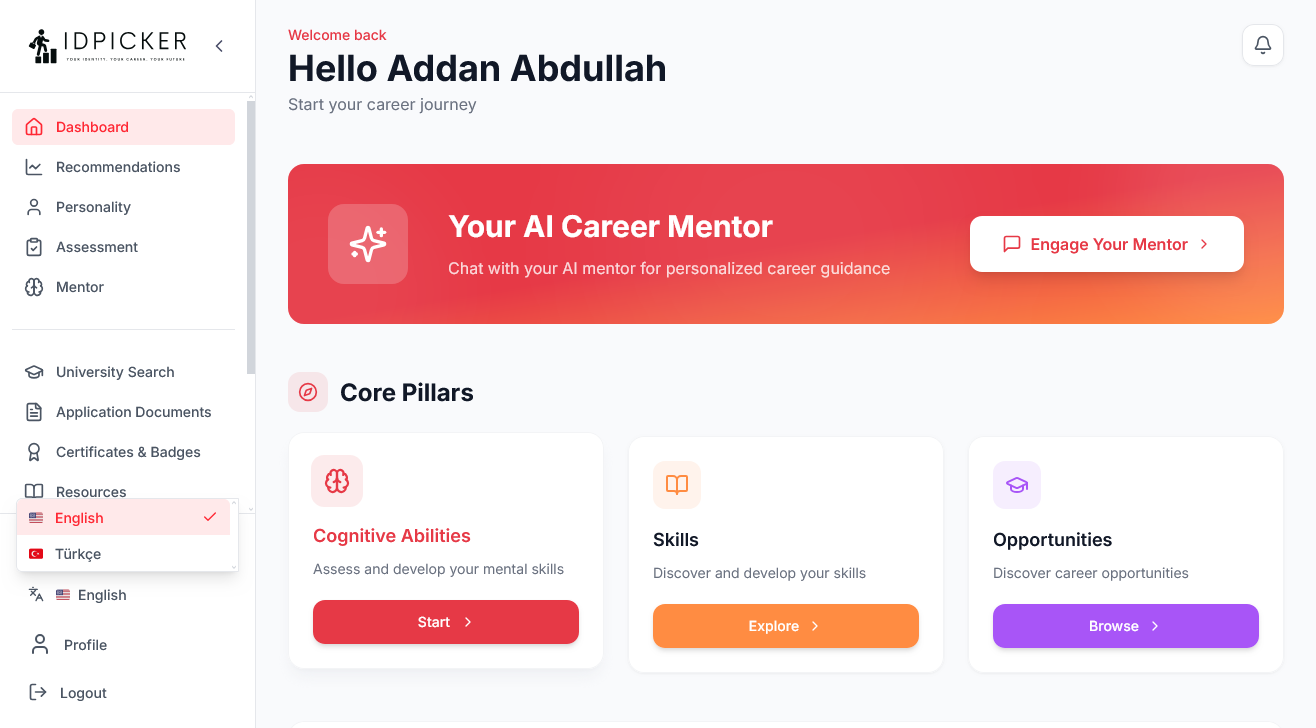
Language
Detailed click-by-click language switching walkthrough
Student panel supports English and Turkish.
1. Switch Language (Normal Case)
- Open sidebar.
- Click language switcher.
- Select target language.
- Wait for UI text refresh.
- Navigate to another page to confirm persistence.
2. Switch Language During In-Progress Assessment
If an assessment is in progress, a confirmation dialog can appear.
- Select new language.
- Read warning: in-progress assessment may be reset.
- Click Cancel to keep current language and progress.
- Or click Confirm to switch language and reset in-progress state.
- Page reloads with selected language.
3. Validation Checklist
After language switch, verify:
- Sidebar labels are translated.
- Dashboard headings are translated.
- Form/assessment labels reflect selected language.
Common Student Questions
Q: Why did language switch ask for confirmation? A: You had an in-progress personalized assessment.
Q: Why was assessment progress cleared? A: You confirmed language change while progress-reset warning was active.
Q: Some labels stayed old language. A: Refresh page once and verify language persisted.